Adding Inventory to Valor Devices
Overview
This guide walks you through the steps to add inventory items to Valor devices using the Valor Portal. You’ll learn how to create products or modifiers and configure required and optional fields.
- Login to the Valor Portal
- From the dashboard, navigate to Settings in the sidebar menu
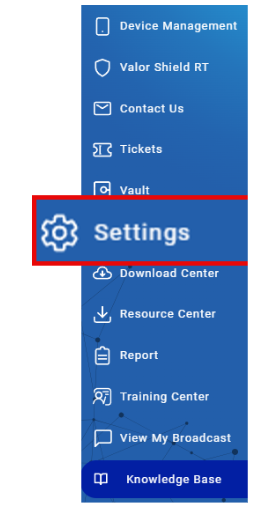
- Navigate to Product Settings
-
Select Product Settings from the Sub-category, Product or Modifier
- Select one of the following:
Term Definition Product An individual item or service available for purchase. Modifier Used to group and organize related items within a main category for improved menu structure, navigation, and reporting. - Click the Add Item button

- Fill in the following information:
Field Description Item Name Name of the product or modifier Category Grouping of items for organizational purposes Description Details about the item Inventory Select Yes or No
If Yes, enter the quantity in stockStatus Active: Available for purchase
Inactive: Not available for purchaseTaxable Select Yes or No to automatically apply tax
Optional Fields
- You may also configure the following:
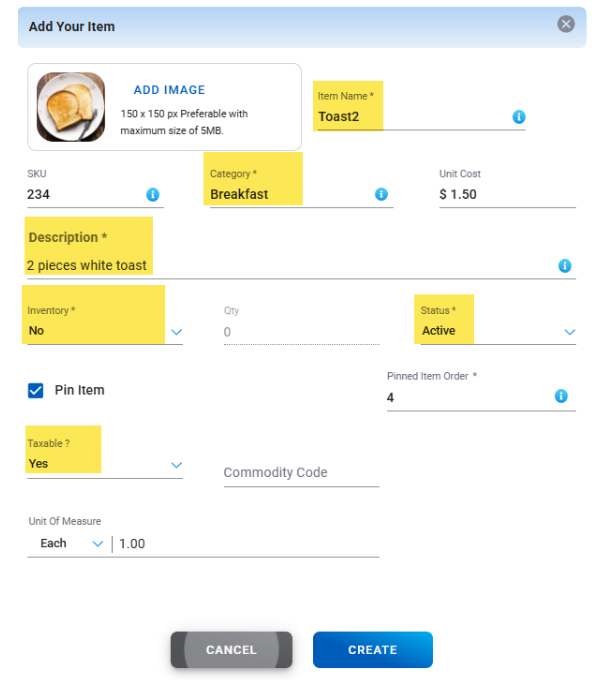
Field Description + Indicator for the optional image upload for an item SKU Item Code Pin Item Highlight the item for quick access Pinned Item Order Required if Pin Item is selected Unit Cost Cost of an item 
- Click Create once all required fields are completed
