.png?width=300&height=300&name=Untitled%20design%20(6).png)
Summary:
This guide covers the following topics:
- Update Date & Time on QD-Line Touch Screen Models
- Update Date & Time on All Z-Line Models
- Military Time Conversion Chart
- Invalid POS on DV Pay Light
Update Date & Time on QD-Line Touch Screen Models
-
From the main screen, tap the Settings (cog) icon.
-
Tap the three-line menu in the top right corner.
-
Scroll down and select Date & Time.
-
Toggle Automatic Date & Time off to enable manual entry.
-
Select your Time Zone and optionally enable 24-hour format.
-
Adjust the Date and Time as needed.
-
Press Home to return to the idle screen.
Update Date & Time on All Z-Line
| Non-Touch Screen | Touch Screen | Display |
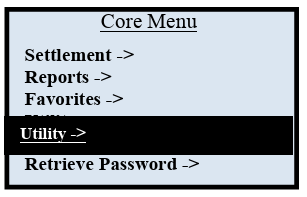
| From the idle screen, press OK to enter the Core Menu. | 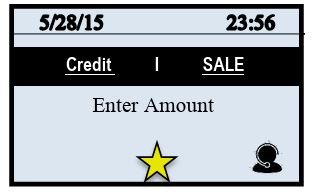
|
|
|
Use the down arrow to highlight UTILITY, then press OK. If prompted, enter the default password: 1234. |
Tap UTILITY. If prompted, enter the default password: 1234. |
|
| Highlight SETTINGS, then press OK. | Tap SETTINGS. | 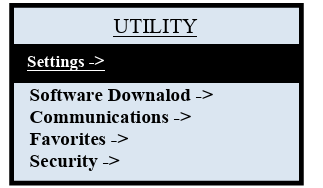
|
| Scroll to DATE AND TIME, then press OK. | Tap DATE AND TIME. | 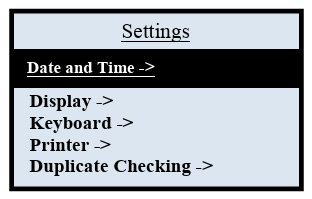
|
|
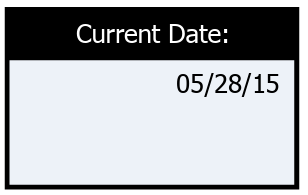
If the date displayed is correct press OK. If the date displayed is incorrect press the yellow back space key to clear it then input the correct Date using the following format: MM/DD/YY |
|
|
|
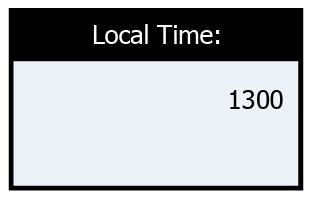
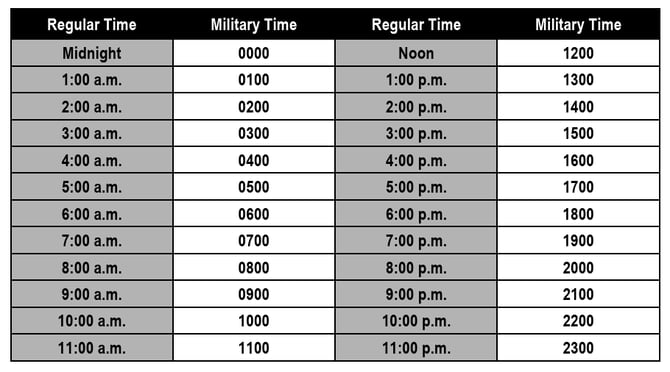
If the time displayed is correct press OK. If the time displayed is incorrect press the yellow back space key to clear it, then input the correct time using 24-hour hour clock (military) format. *Example shows 1:00 PM |
|
|
|
Terminal returns to the setting's main menu. |
||
Military Time Conversion Chart
| Issue | |
|
This error typically appears when the terminal’s date, time, or time zone are incorrect. DV Pay Lite requires accurate time settings to process transactions securely. |
How to Fix the Issue in DV Pay Lite
-
Press the Home Button
Exit to the DVPayLite home screen. Enter your System PIN when prompted. -
Go to Settings
-
Select Date and Time
-
Correct the Date and Time Settings
Update:-
Date
-
Time
-
Time Zone
Ensure all settings match your current location.
-
Once corrected, the device will resume normal processing without the Invalid POS Date error.