.png?width=300&height=300&name=Untitled%20design%20(6).png)
Overview
This guide outlines the steps to complete PCI Compliance for Elavon merchants using the PCI Compliance Manager portal.
Step 1: Register Account
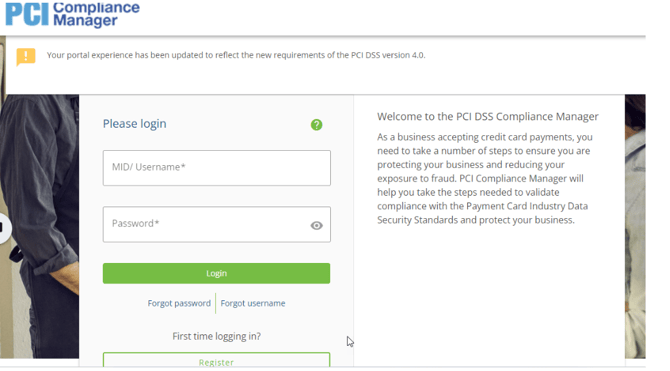
- Navigate to the PCI Compliance Manager site
- If its the merchants first time logging in: Click Register
Step 2: Enter Merchant Information
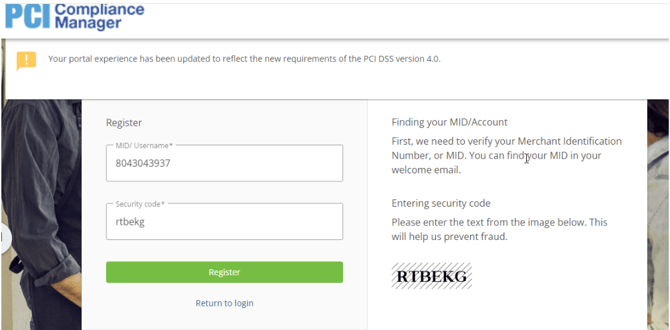
- Input the following:
- Merchant ID (MID)
- Security Code (provided)
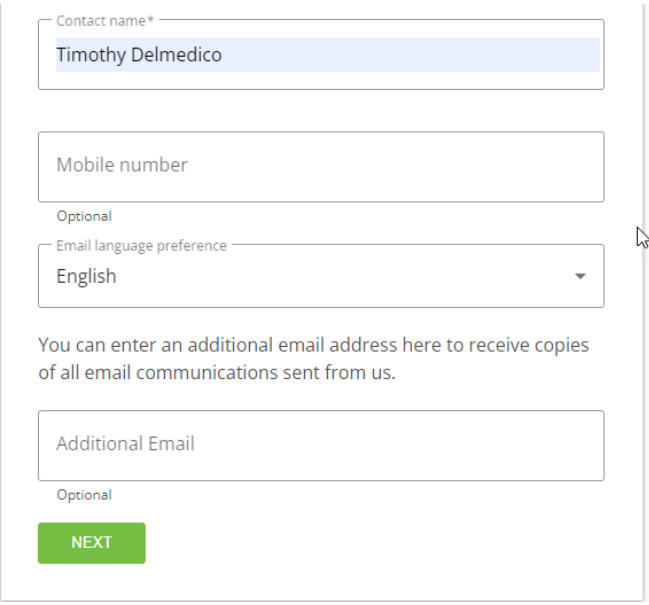
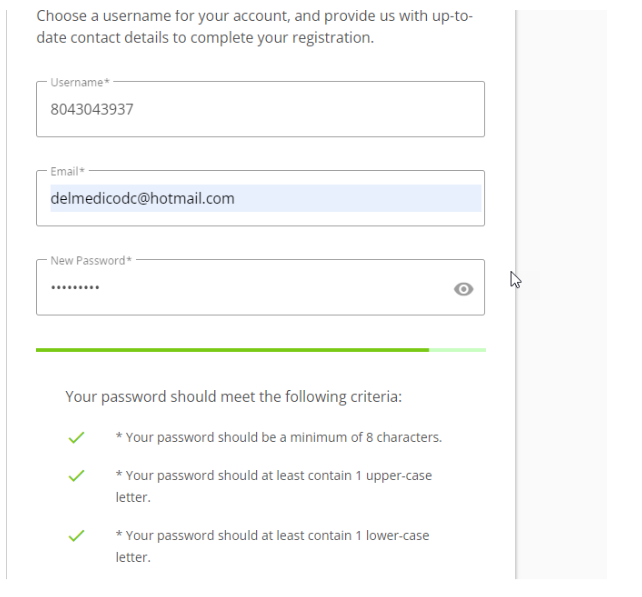
Step 3: Create Login Credentials
 |
|
- Enter the merchant’s email address
- Create a password
Step 4: Complete Business Profile
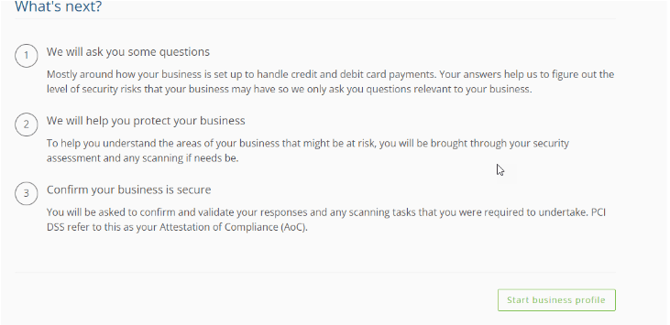
- Start the Business Profile
- Complete this section on behalf of the merchant
Step 5: Acknowledge Terms
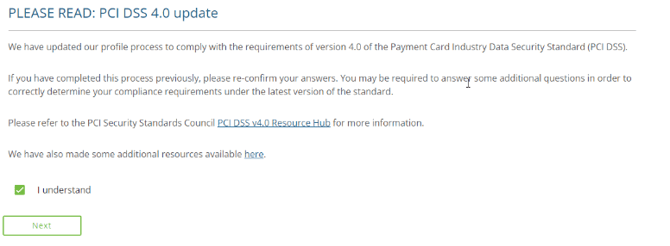
- Select I understand
Step 6: Guided Setup
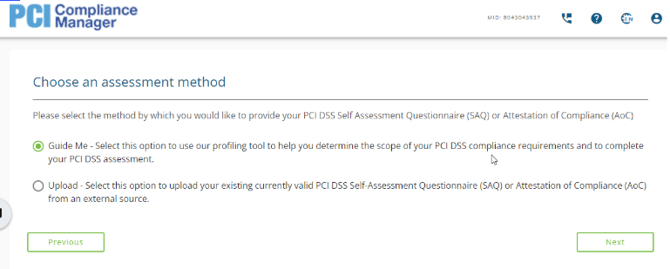
- Choose Guide me
- Click Next
Step 7: Answer Business Questions
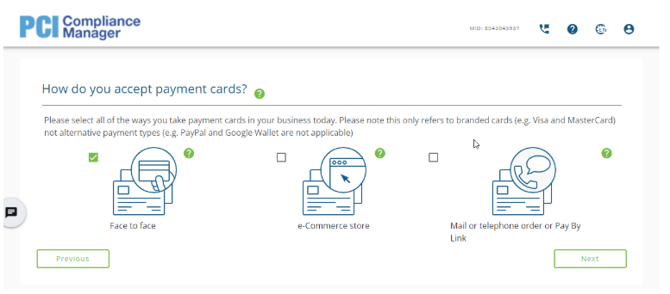
- Select the primary method the merchant uses to accept credit cards
- Answer all questions based on the merchant’s actual business operations
Step 8: Complete Security Assessment
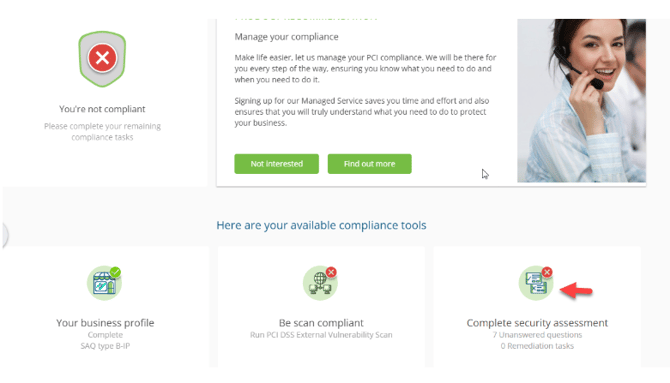
- Click Complete Security Assessment
- Select Manage
- In the next window, click Answer Now
- Answer Yes to all assessment questions
Step 9: Attestation
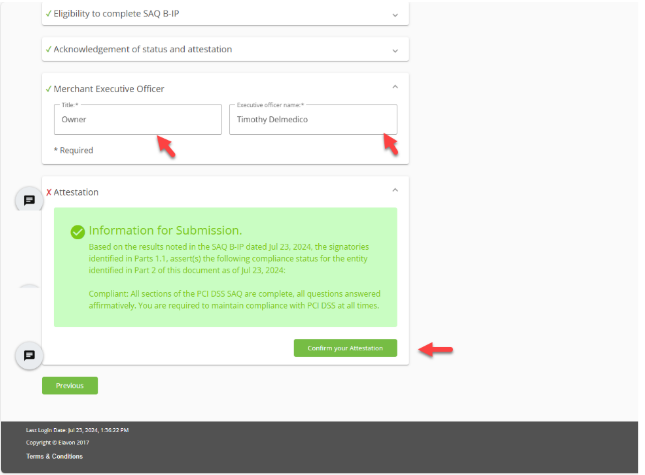
- In Merchant Executive Officer, enter:
- Title: Owner
- Name: Merchant owner’s name
- Confirm the attestation
Step 10: Compliance Status
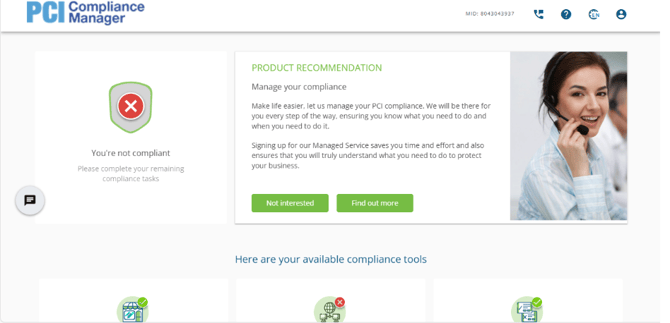
-
- 24 hours (up to 36 hours in some cases)
Step 11: Update HubSpot Record
Once completed:
- Add a note in the merchant’s HubSpot company record
- Include:
- Confirmation: “Elavon PCI Complete”
- Password used