.png?width=300&height=300&name=Untitled%20design%20(6).png)
Basic Navigation Guide
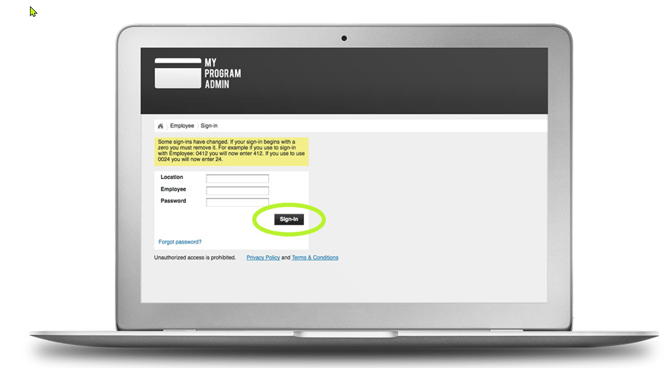
Figure 1: Factor 4 Log in Screen
Accessing Your Portal
To begin, access your portal using the link below:
https://myprogramadmin.com
Login Requirements
You will need the following credentials:
- Location ID
- Employee ID
- Password
If you do not have this information, please contact your sales representative.
Signing In
- Enter your Location ID
- Enter your Employee ID
- Enter your Password
- Click “Sign In”
Main Location Page Overview
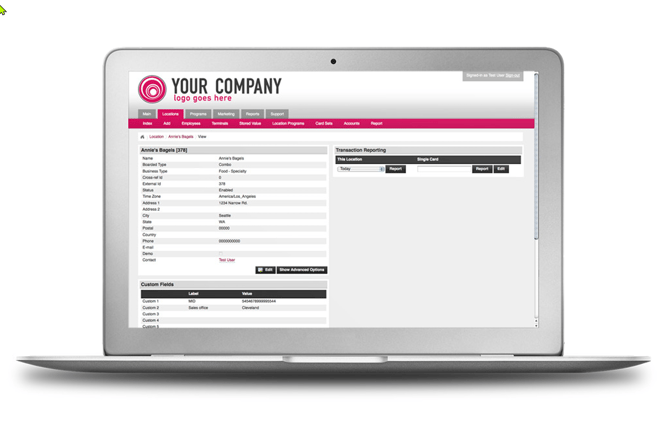
Figure 2: Factor 4 Main Location Page
Navigation Structure
Each of the main tabs at the top of the page has a set of sub tabs. This helps you to navigate the program and narrow down your desired activity.Tracking Your Navigation
As you navigate through the program, a set of links develop under the sub tabs. These help you track forward and backward through the pages you have visited.Understanding Links
Links are shown as text in colored font. If a name, number, or word is a color, clicking it will bring you to a new page or show you a report associated with it.
Reporting
|
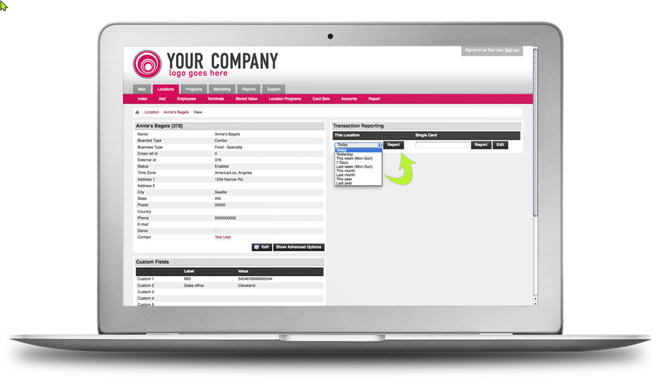
REPORTS You can run reports for:
|
How to run a Transaction Report (multiple options):
|
Accessing the Quick Report
|
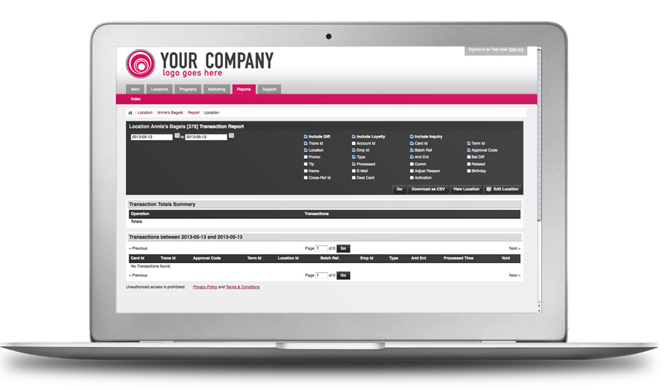
After running the report, you will notice a grey box that shows the date range you chose to report on, as well as several check boxes to the right.
The check boxes control what information you view in your report. Each check box represents a column in the report.
You can edit what information you view by checking and unchecking the appropriate boxes, then clicking “Go”, this will regenerate the report.
The Transaction Totals Summary gives you a snapshot of what types of transactions were run, how many of each, and the total values. In the report, if a transaction is highlighted pink it means that the transaction was voided.
Programs Tab
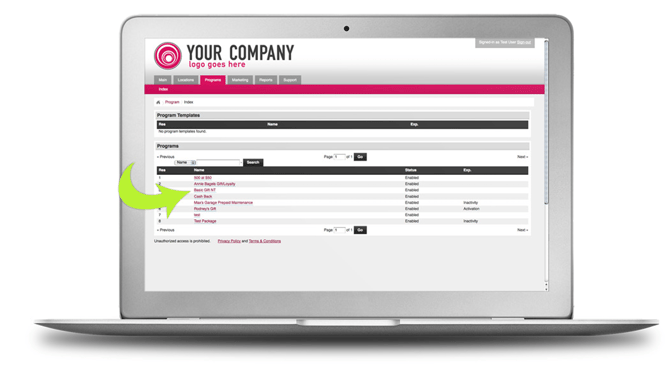
Figure 5: Factor 4 Programs Tab
-
You will see an index of the programs your location is currently a part of.
-
To view the reports that are available for that program, click on the program name.
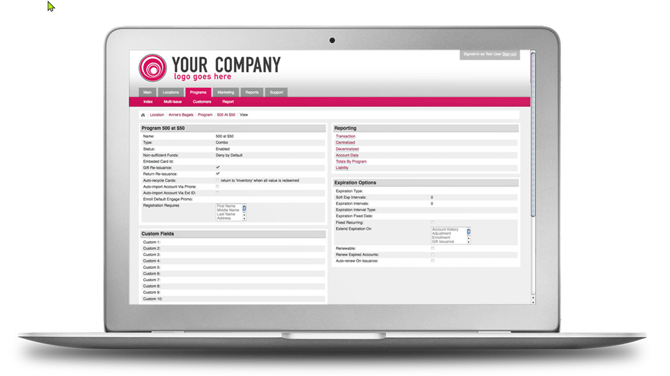
Figure 5.1: Factor 4 Programs Tab
There is a header labeled Reporting on the right side of the screen. Under this heading are several reporting options. Anything in colored font is a link, clicking on any report name here will take you to the report.
Below is a description of each report:
Reports Tab
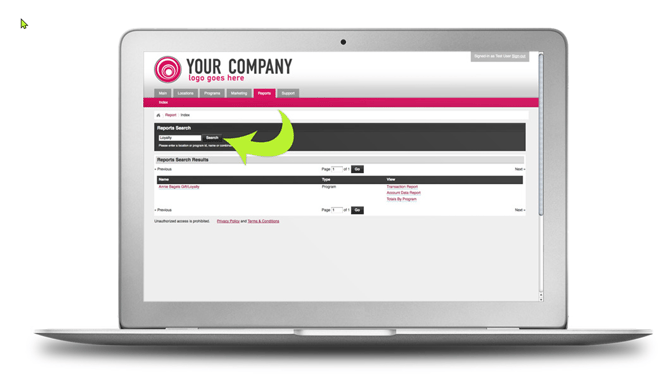
Figure 6: Factor 4 Reports Tab
This allows you to search for the report you are looking for
-
Type in the name of the program you want a report for and click Search.
-
This will generate a list of the reports for that Program.
-
You can then click on the Report name.
Card Edit
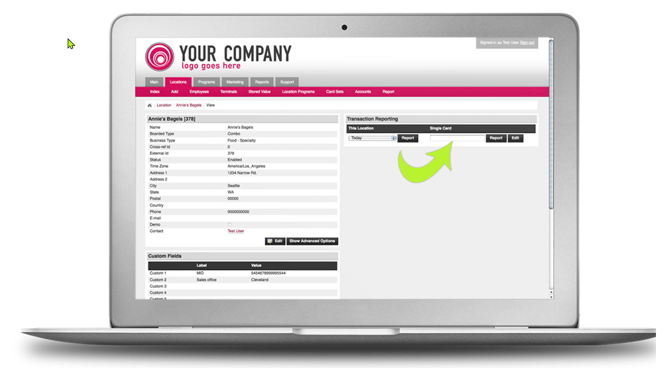
Figure 7: Factor 4 Card Edit Tab
On the Locations home page type in the card number, you are looking for in the “Single Card” box.
If you are simply looking for card information such as balance details and customer data already entered, you can click “Report” which will bring you to the card summary page.
If you need to edit the card (add customer information, change a card status or change the balance) you will click “Edit”. You will notice several different headers on the Edit page.
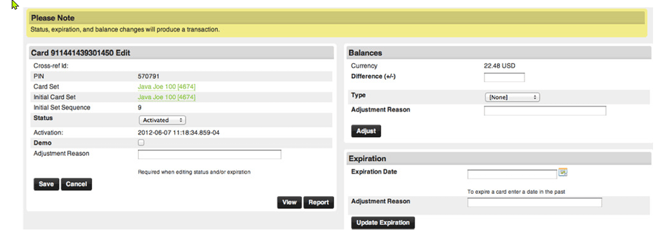
Figure 8: Factor 4 Single Card Edit
At the top left is the basic card information, including the card number, pin, and activation date.
The right side of the screen shows the Balance information and the option to change the expiration date.
To edit the expiration date from Active to Expired:
-
Enter in a date in the past in the expiration date box on the right, then click “Update Expiration”.
-
This will automatically update the Status box on the left. Similarly, if you are changing the status from Expired to Activated, you can change the expiration date.
-
Click Update Expiration and the status will be updated.
To change the balance of a card:
-
Enter in the difference amount in the Difference box under the Balance header.
-
Select the Type of value you are adding or subtracting and click Adjust.
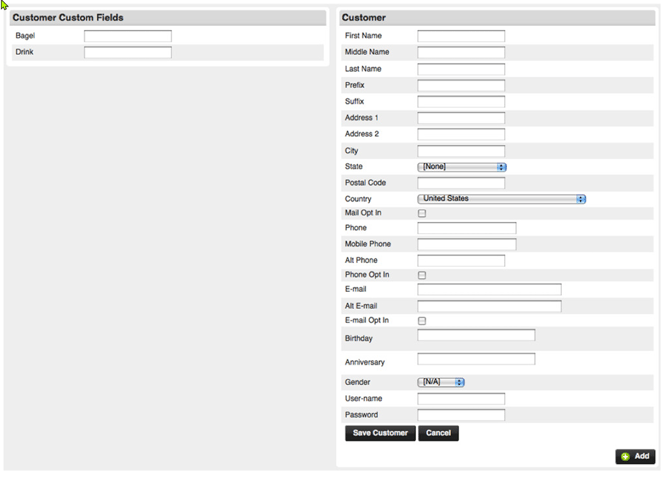
Figure 9: Factor 4 Custom Fields
Scroll down to see the Custom Fields on the left and the customer information on the right.
To edit this information, you will need to fill in the appropriate fields, then click “Save Customer” at the bottom of the page.
If you are adding mobile numbers or email addresses for marketing purposes, be sure to check the corresponding “Opt-In” box in order to ensure that the SMS and Email broadcasts are sent to the customer.
EMPLOYEE ADD AND EDIT
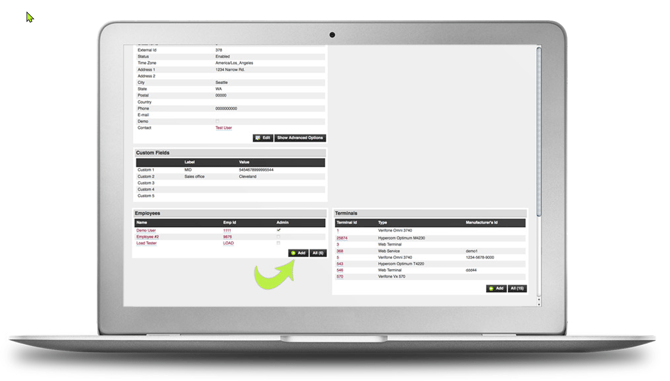
Figure 10: Factor 4 Employee Add & Edit
You will need to add the employees into your portal IF:
-
You require an employee id and/or password at the terminal level
-
You have additional employees that you should have access to the online portal
To do this, from your location home page:
-
Scroll down to the Employee header
-
Click Add
-
This will bring you to the Employee Add page, which will allow you to add a new employee.
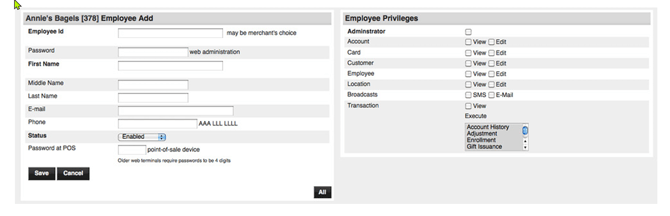
Figure 11: Factor 4 Employee Add Page
Below is a description of each field on this page: