.png?width=300&height=300&name=Untitled%20design%20(6).png)
Settle a pre-auth from a Valor terminal
Before you start
-
Have the transaction number (Tran #) or the card last 4 digits available.
-
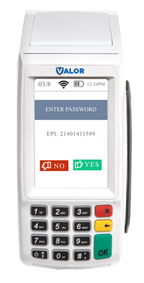
If prompted for the terminal password, use the last 4 digits of the EPI.
|
Tap the touchscreen until the transaction type shows Ticket (use the touchscreen to change transaction type).
|
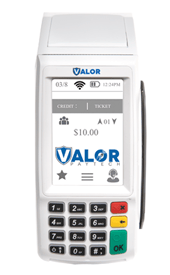 |
|
Enter the password on the device
|
 |
|
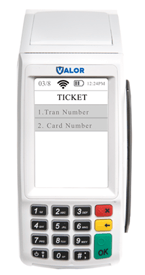
Choose how to look up the pre auth:
|
 |
| Enter the Transaction Number and press OK on the touch screen or the OK button on the keypad. | 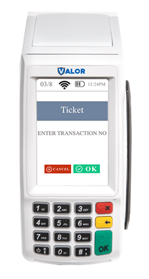 |
| Enter the Last 4 Digits of the Card and press OK on the touch screen or the OK button on the keypad | 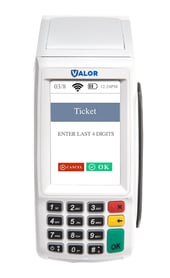 |
| Confirm that the transaction on the screen matches the original Pre auth transaction that was performed. | 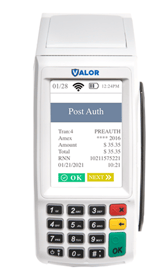 |
|
Once the tip and tax is added to the transaction, you can confirm the numbers and finalize the transaction. |
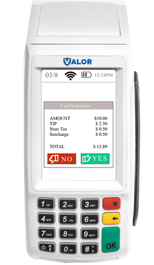 |
|
|
Settle (capture) a pre-auth in the Valor portal
Before you start
-
Log into the merchant’s Valor portal with appropriate access.
-
Know the transaction date, transaction number, or card last-4 to search if needed.
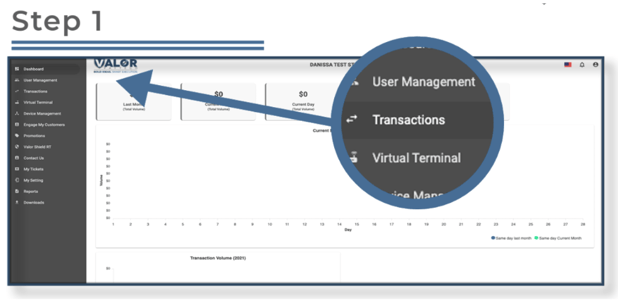
- Click Transactions in the portal sidebar to view live transactions
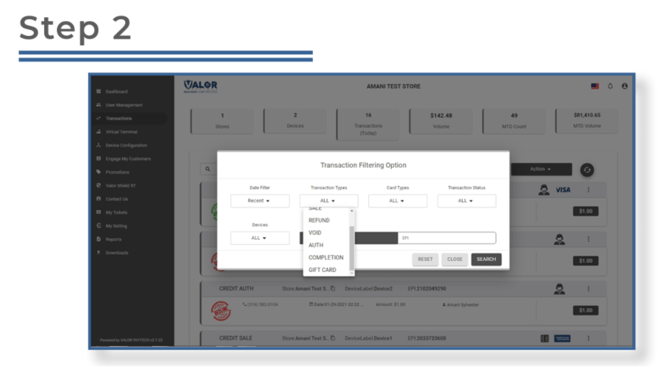
- Select the Filter button (to the left of Action). Open the transactions filter and choose AUTH to show all pre-authorized transactions; click Search.
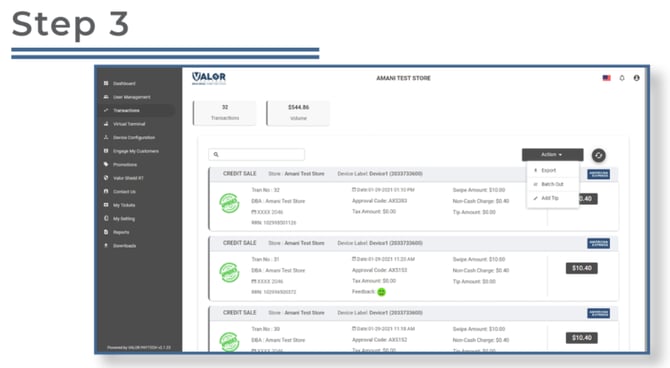
- Now you will see all of your preauthorized transactions.
-
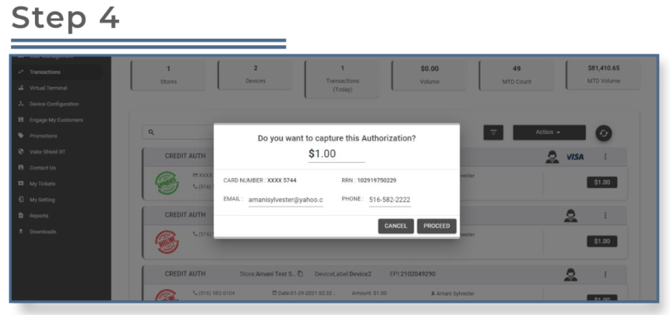
Select the ellipsis (⋯) in the top-right of the transaction snapshot and choose Capture from the dropdown.
- Note that all of your transaction will say “Credit Auth” at the top of the transaction snapshot.
-
- You’ll be prompted to confirm the capture. Before confirming you can edit the sale amount, and update email and phone number if needed. Make edits and confirm to capture the transaction.