.png?width=300&height=300&name=Untitled%20design%20(6).png)
The POS+ Dashboard runs in a Chrome browser window and supports additional payment flows for POS+, including:
- Mobile Payments
- Payment Portal
- Recurring Payments
Installation
-
First, Envoy will set up the customer’s login credentials in the POS+ Portal.
-
Without a username and password, the merchant will be unable to log into the POS+ Dashboard.
-
-
Next, navigate to: www.POSplusinvoices.com
-
Log in using the merchant credentials.
-
Once on the page, you may wish to save this URL as an application icon on the user’s mobile device for easy access. This is especially recommended for field service workers.
Save POS+ Dashboard as a Home Screen Icon
We recommend using the Chrome browser on both iOS and Android devices, although the same process works in other browsers such as Safari and Edge.
To save the POS+ Dashboard as an app icon:
-
Open www.POSplusinvoices.com in the browser.
-
Tap the Share button
 to the right of the address bar.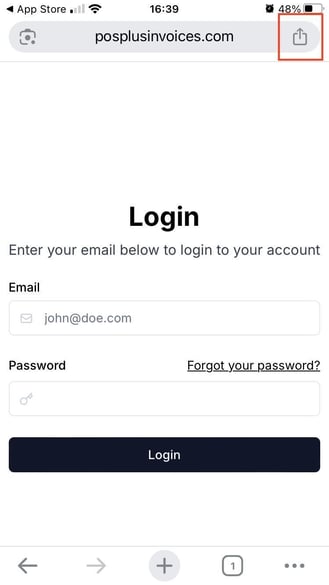
-
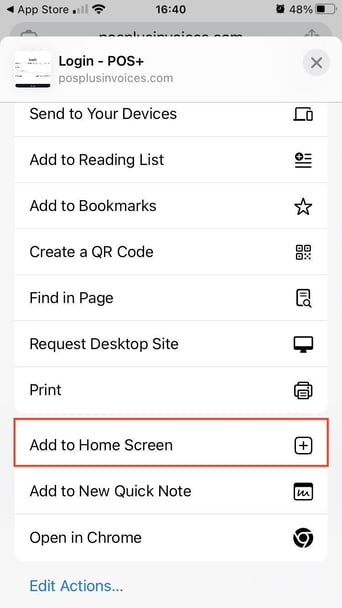
Select Add to Home Screen.
-
Name the app POS+.
-
Tap Add.
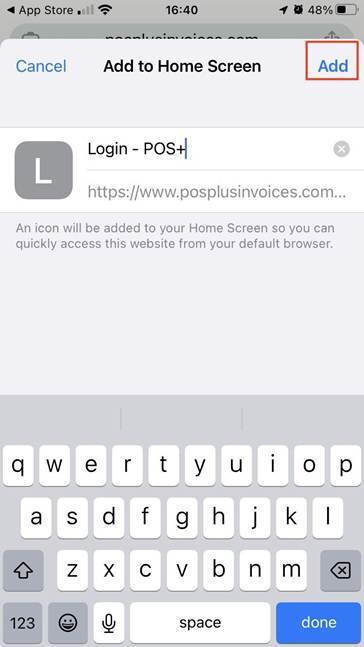
The POS+ Dashboard will now appear on the device home screen like a standard app.
Additional Help
If additional assistance is needed, many helpful how-to videos are available online.
Example resource:
How to Put a Website Icon Link on your iPhone Homepage