.png?width=300&height=300&name=Untitled%20design%20(6).png)
Installing POS+ On-Prem
The POS+ On-Prem version runs on Windows desktop and supports the following core payment flows:
- Terminal Payments
- Keyed Transactions
- Keyed ACH
- Payment Links
Installation
Download the POS+ Installer
-
Log into the portal and navigate to the software you want to use.
-
Scroll to the Installation section of the software page and download the executable file
-
Download the file on the merchant’s Windows desktop computer.
Windows Security Warnings
After downloading, Windows may display a security warning.
A warning will appear:
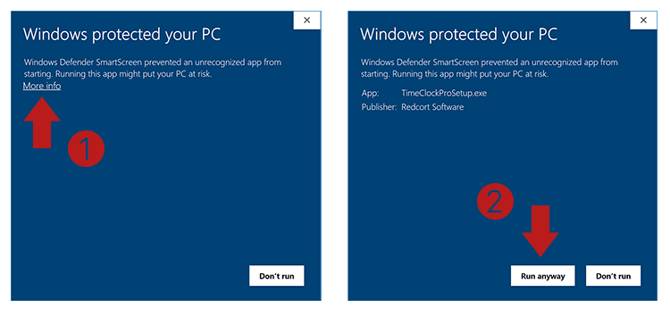
Figure 1: POS+ On Prem Installation- Warning Message
Click More info.
A new screen will appear
Click Run anyway.
Another windows alert will appear
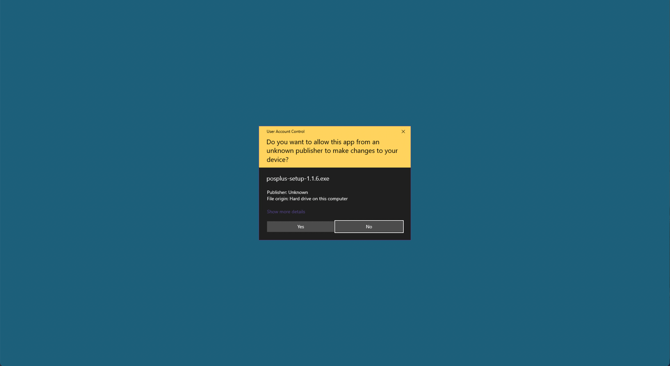
Figure 2: POS+ On Prem Installation- Warning Message 1.2
Click Yes.
Launch the POS+ Installer
If the POS+ Setup window does not automatically appear:
 Click the “P+” button in the Windows taskbar.
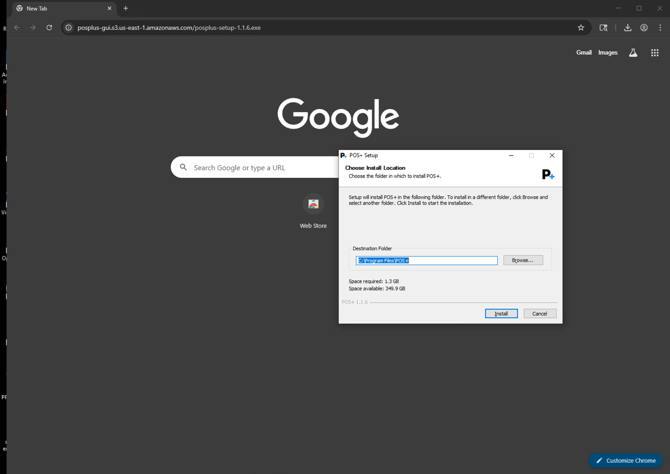
Figure 3: POS+ On Prem Installation- Install Window
When the POS+ Setup screen appears:
Click Install
Wait for installation to complete
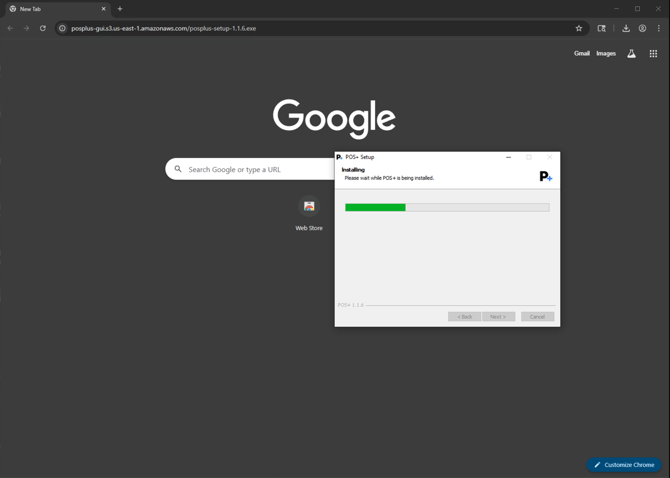
Figure 4: POS+ On Prem Installation- Download Screen 1
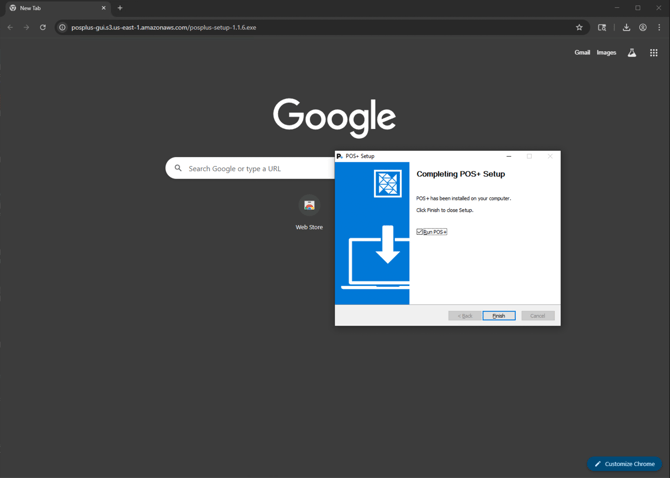
Figure 5: POS+ On Prem Installation- Downloading Screen 2
Click Finish
You can now load the POS+ installation, and it will appear as below.
First Login
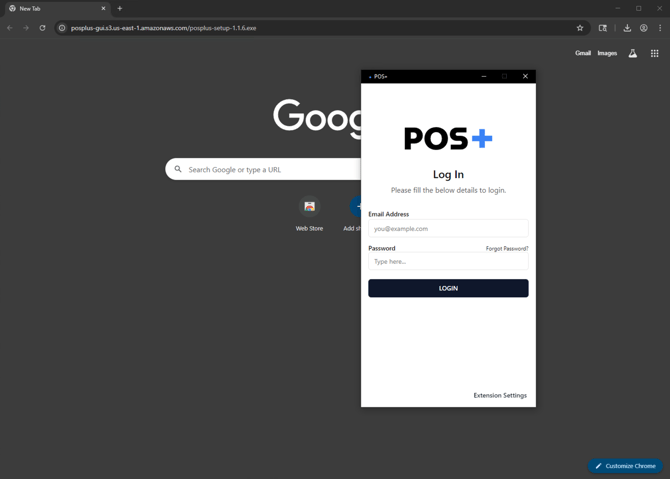
Figure 6: POS+ On Prem Installation- Log in Screen
Once installation is complete:
-
Launch the POS+ application
-
Enter the merchant’s credentials
-
Log in to begin using POS+
To Pin POS+ to the Taskbar
You can also reference the Windows tutorial:
Video Demo : Pin and Unpin Programs to the Taskbar
Selecting an Integration
After logging in, the merchant may need to select their integration.
In the Select an Integration section, click the three vertical dots
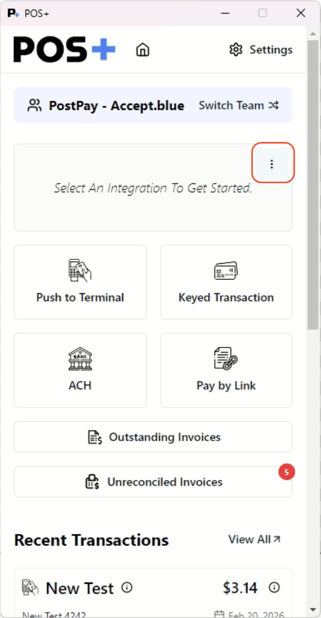
Figure 7: POS+ On Prem Installation- Select an Integration
Select an Integration from the dropdown menu
Choose the correct integration from the list
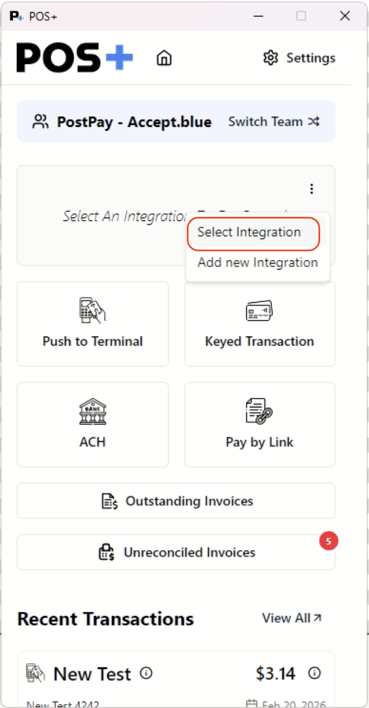
Figure 8: POS+ On Prem Installation- Select Integration 1.2
Choose the correct integration from the list
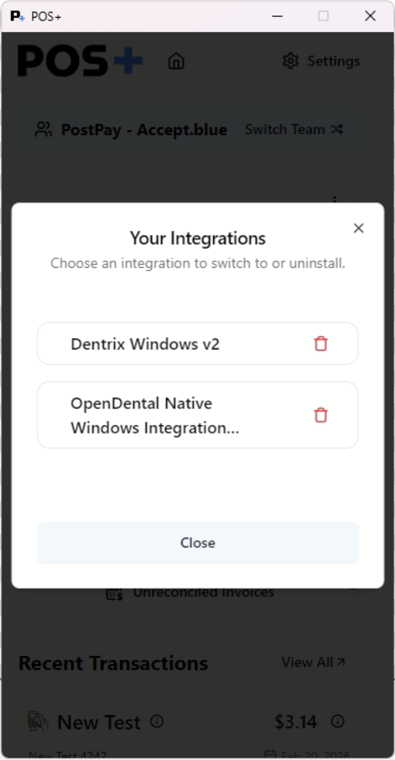
Figure 9: POS+ On Prem Installation- You integrations
Choose the correct integration from the list
Installing AnyDesk
When POS+ support needs access to the local machine for integration troubleshooting or updates, the merchant must install AnyDesk.
Download AnyDesk
-
Browse to:
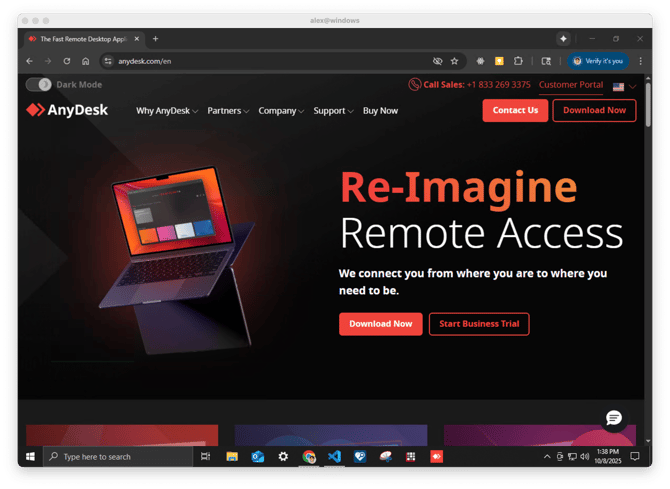
-
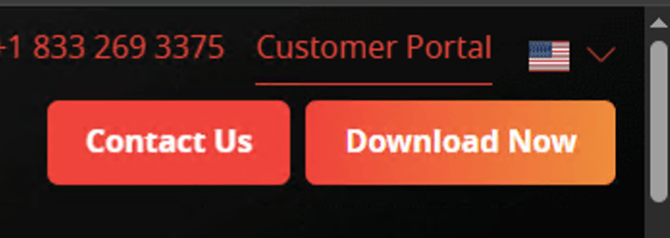
Click Download Now
-
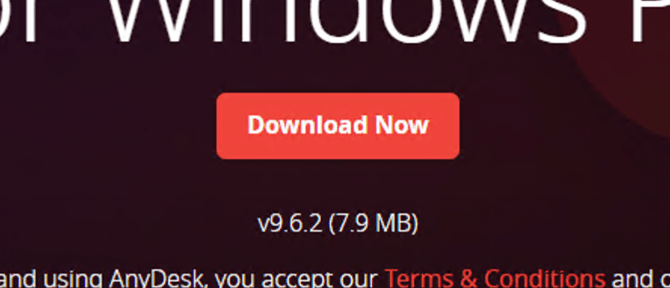
Click Download Now again if prompted
-
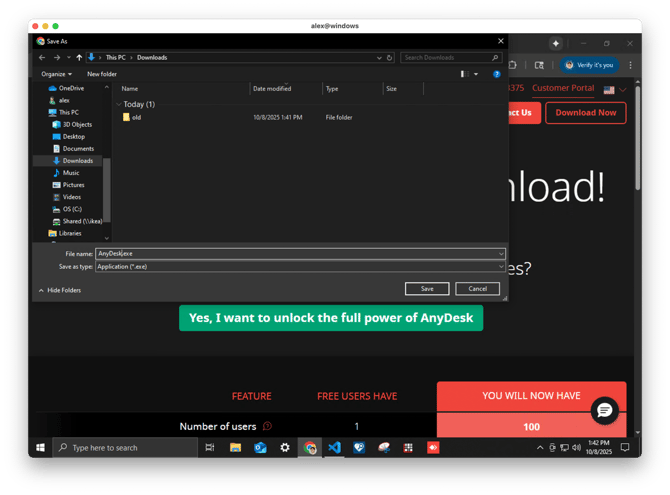
Save the installer to the Downloads folder
Run the Installer
-
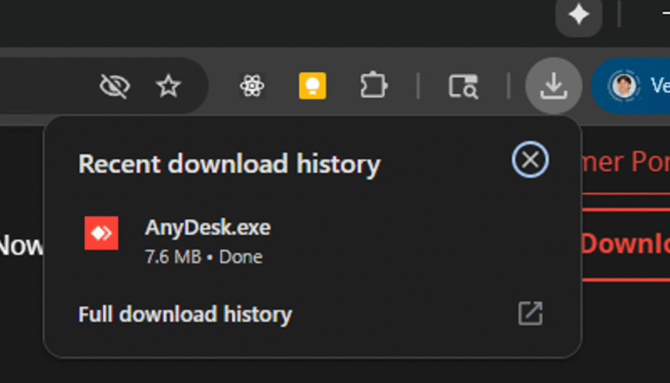
Open the browser’s Download History
-
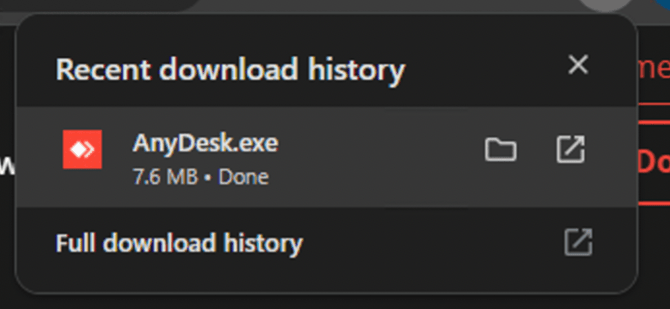
Click AnyDesk.exe
-
When the AnyDesk window appears:
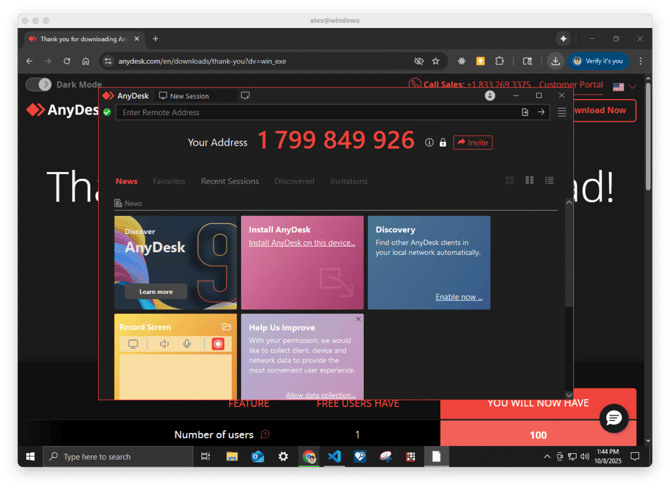
- Click Install AnyDesk on this device
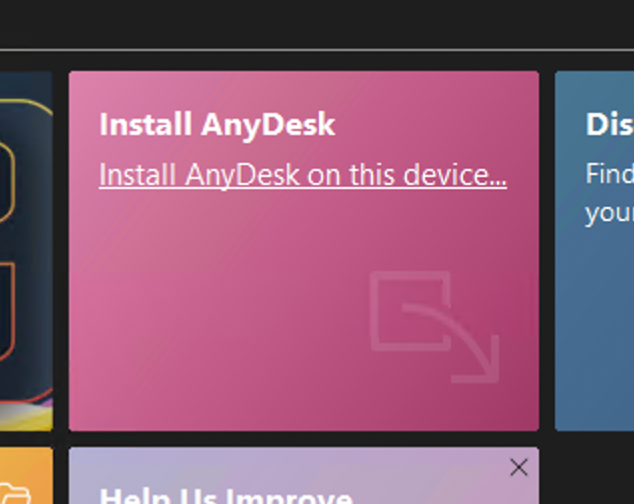
Complete Installation
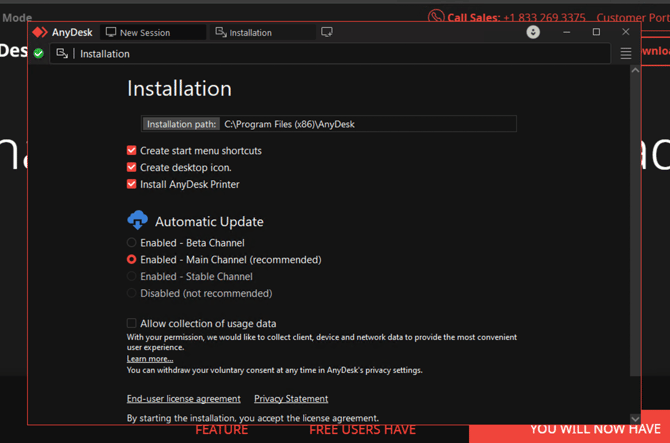
-
Scroll down in the installer window
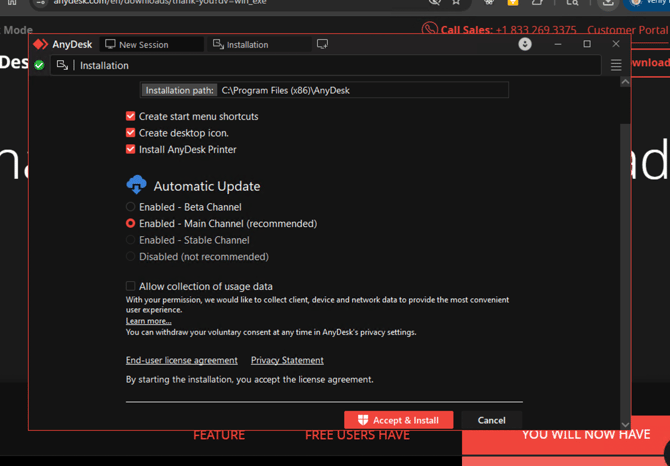
-
Click Accept & Install
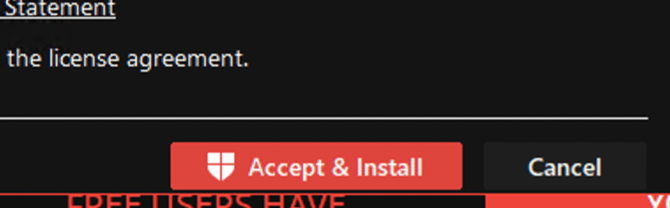
-
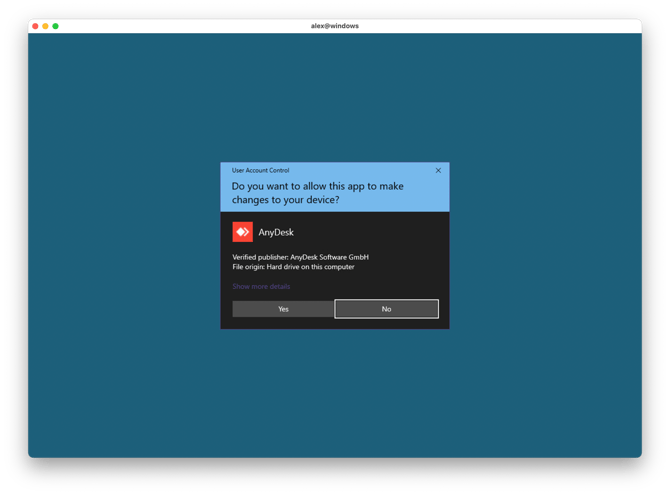
If Windows displays a warning, click Yes
-
Wait for installation to complete
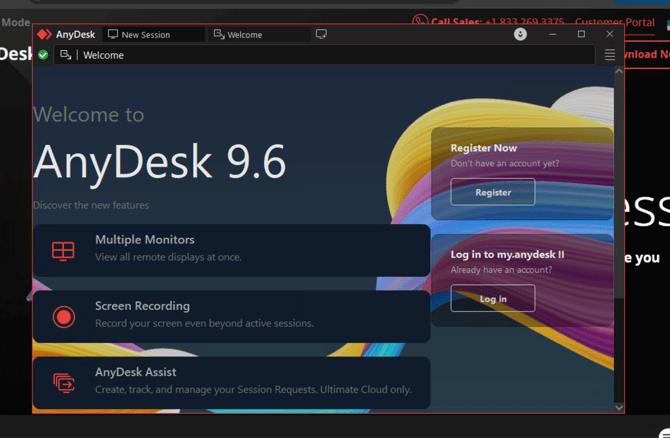
Once installed, the AnyDesk main window will appear.
Configure AnyDesk Access
-
Close the Welcome tab by clicking the X
-
Record the AnyDesk Address

- Jot down your AnyDesk Address. You'll need to provide it to POSPlus Tech Support.
- Click the menu icon with four horizontal lines in the upper-right corner.
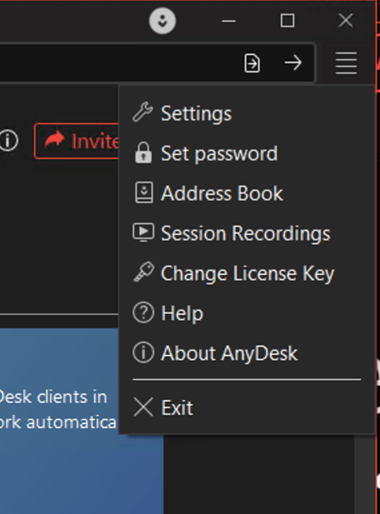
- Select Set Password. Windows will display the following warning:
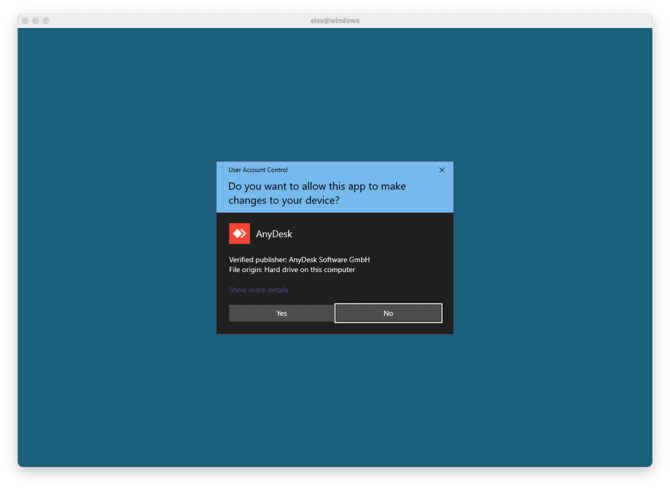
- When prompted by Windows, click Yes.
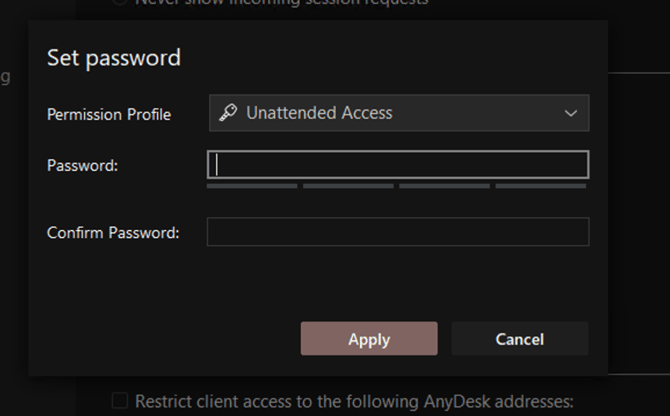
- Type your new password in the “Password” box, then again in the “Confirm Password” box.
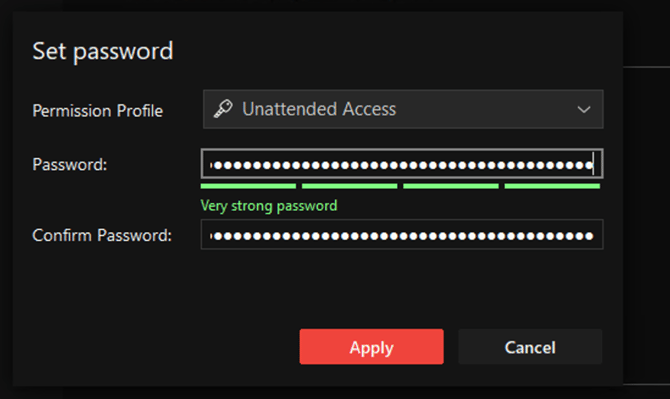
- Click Apply
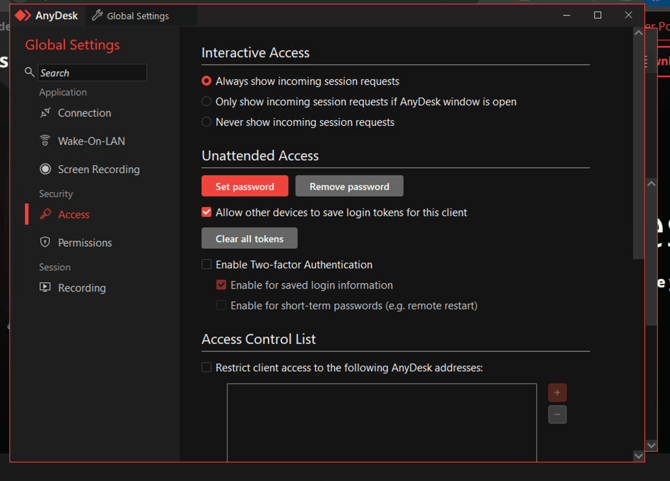
- Close the settings window
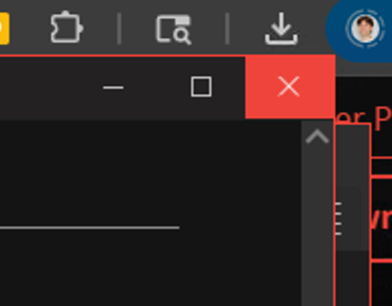
- We should be back here:
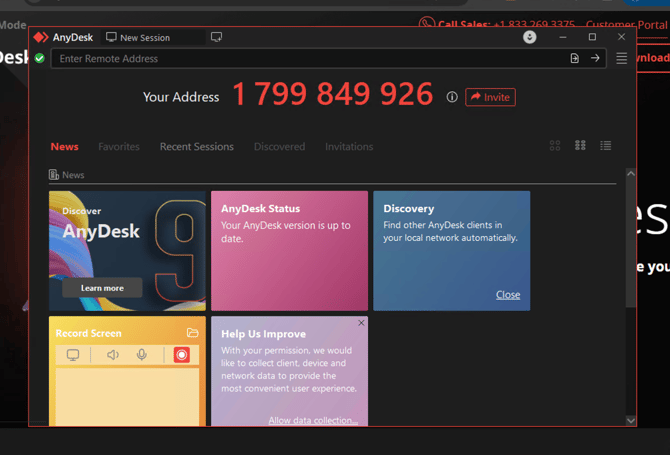
The merchant should now provide the following to POS+ support:
-
AnyDesk Address
-
AnyDesk Password
Troubleshooting
It is possible that the merchant uses additional firewall software that blocks the download. Please work with the merchant’s IT personnel to resolve the issue.