.png?width=300&height=300&name=Untitled%20design%20(6).png)
About
The POS+ Browser Extension is used for cloud software's run on a laptop or desktop in a Chrome browser window.
If the merchant needs payment flows on mobile devices, customer portals, or recurring payments, then you must defer to the POS+ Dashboard.
The POS+ Dashboard has additional features beyond the core features.
First Run
The first time you run the POS+ Browser Extension requires a reload of tabs that were open prior to installing the extension. For example, if you had your software opened in a tab and then you installed POS+, you would need to reload the tab running the software or open a new tab and load your software in the new tab.
FAQ
-
Can we use the same login for the same account across different computers?
-
Yes, you can have multiple instances of the same user logged in at the same time to your POS+ account.
-
Outstanding Invoices
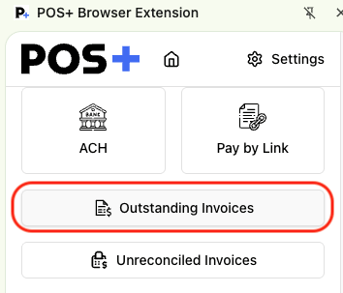
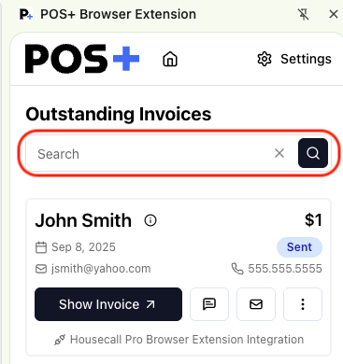
Outstanding Invoices show a list of invoices that have not yet been paid. You can search for a particular customer in this view.
|
|
| Click on Outstanding Invoice | Then Search for the Customer Invoice |
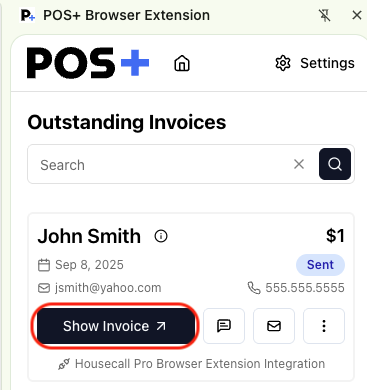
Show Invoice
This shows the invoice that was sent to the customer. Pressing this will open the invoice in a new window.
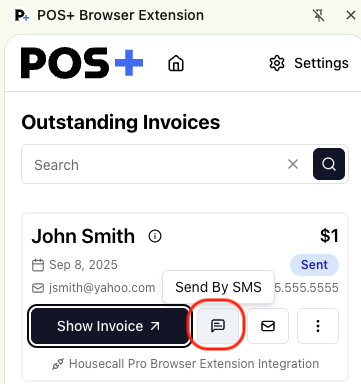
Send by SMS
Pressing Send by SMS , this will text the invoice to the customer. The phone number that will receive the text is the number listed on the card.
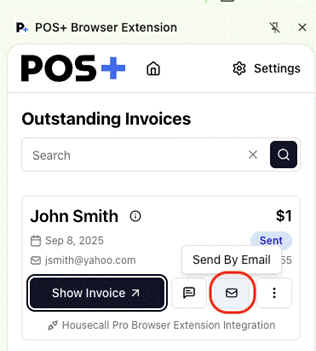
Send by Email
Pressing Send by Email will email the invoice to the customer. The email address that will receive the email is the email address listed on the card.
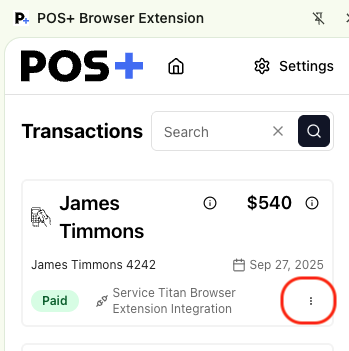
Pressing the three vertical dots provides additional actions.
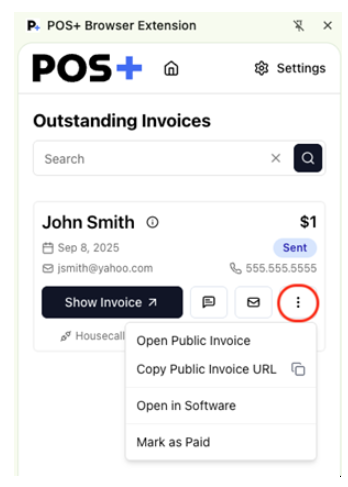
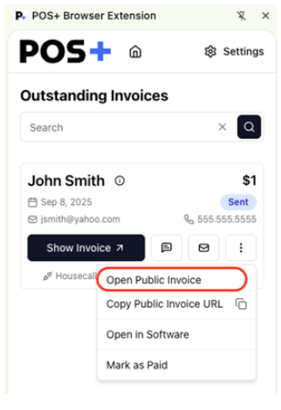
Open Public Invoice
Pressing Open Public Invoice button is the same as pressing the Show Invoice button and will open a new browser window with the invoice displayed.
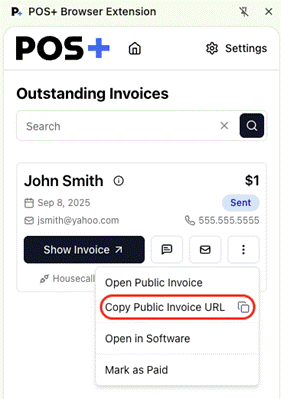
Copy Public Invoice URL
Pressing Copy Public Invoice button will copy the link for the public invoice. This link can then be sent wherever convenient.
Open in Software
Pressing Open in Software button will open the invoice in the merchant’s software. If the merchant is not already logged into their software, they will need to login to see the invoice.
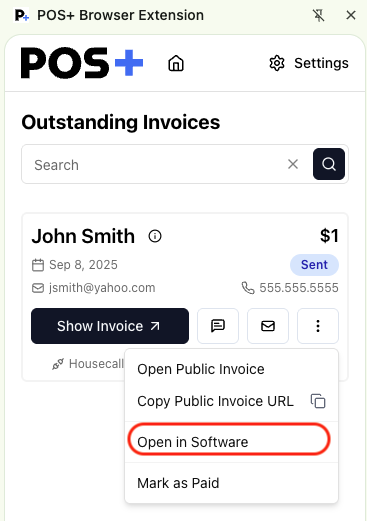
Mark as Paid
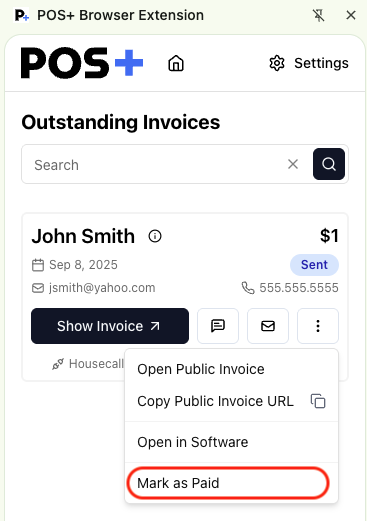
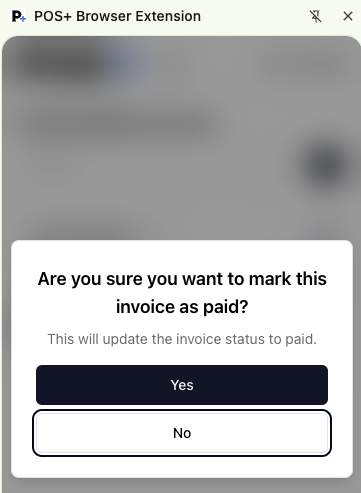
Pressing Mark as Paid button will mark the invoice as paid and remove it from the Outstanding Invoices section. Doing this will not reconcile the transaction in the software. You will be asked to confirm this action.
Demo Video- POS + Extension- Mark as Paid
|
|
| Select Mark as Paid | Confirm you would like to mark invoice as Paid by selecting Yes/No. |
Unreconciled Invoices
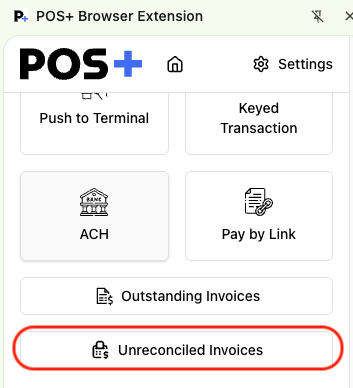
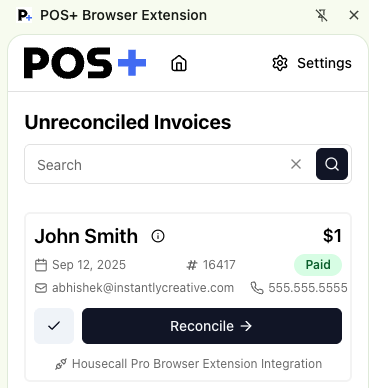
These are invoices that have been paid but have not been reconciled back into the software. This can occur if there’s a connectivity issue, either because the internet was unstable or there was a legitimate bug in POS+. You can search for a particular customer in this view.
Demo Video- POS+ Extension- Reconciliation
|
|
| Select Unreconciled Invoices | Search for the Unreconciled invoice you would like to view. |
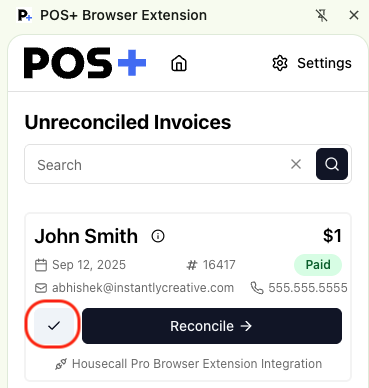
Check Mark
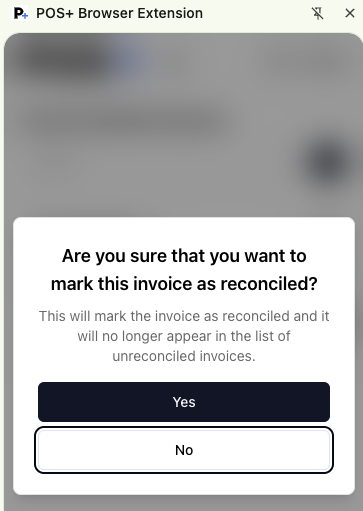
Pressing the Check Mark will mark the invoice as reconciled without reconciling it in the software. You will be asked to confirm this action.
|
|
| Press the Check Mark | Confirm if you would like to mark this invoice as reconciled by selecting yes/no. |
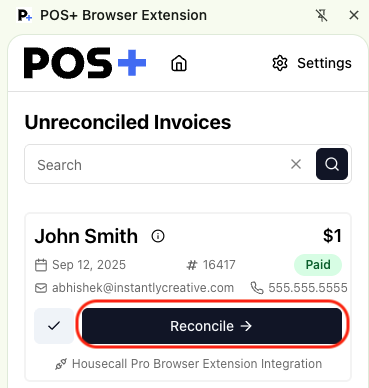
Reconcile
Pressing Reconcile will run the automation to reconcile the invoice back into the software. If pressing this does not reconcile the software, please reach out to POS+ support.
Settings
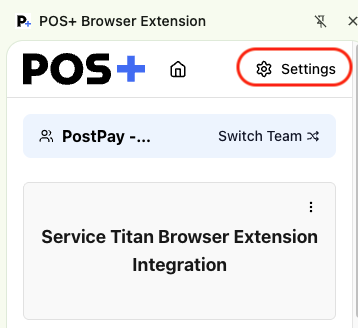
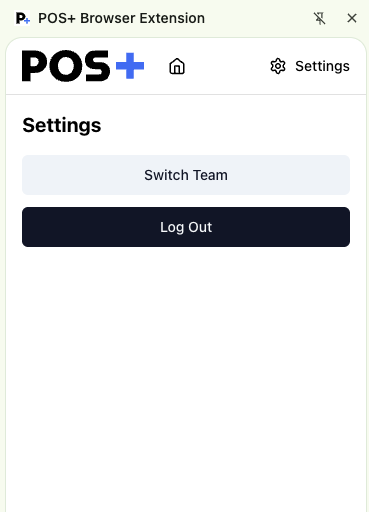
The Settings function allows users to log out or switch teams.
Larger organizations will have multiple teams, i.e. a team per location. The intent of a team is to provide different permissions or views to each team. There are hierarchical Team rules that can be managed for merchants in the POS+ Portal.
|
|
Add New Integration
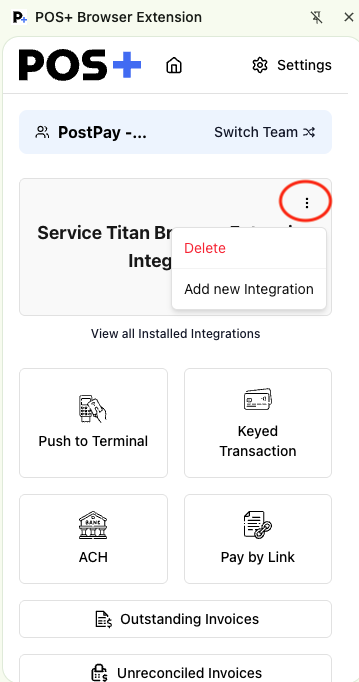
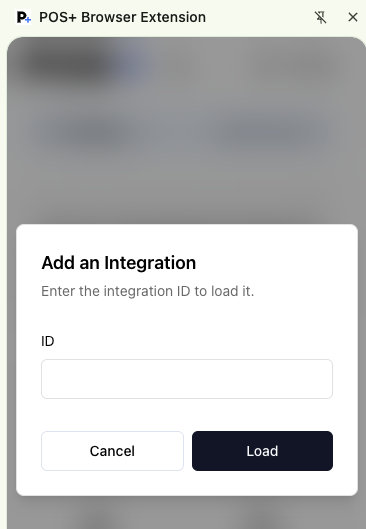
If the POS+ extension does not automatically recognize the merchant’s software, it’s possible that the wrong integration was installed. This should never be an issue for a merchant set up through the POS+ portal as merchants are connected to a specific software integration on setup.
However, if you need to change the integrated software, this is where you would do it. Each software has a unique ID. The unique ID can be found on the software’s page in the POS+ Portal.
|
|
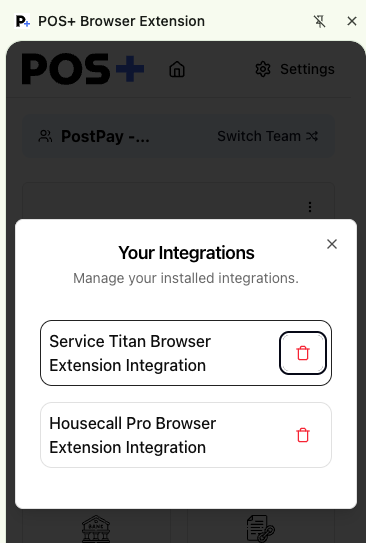
View All Installed Integrations
This view contains a list of the installed software integrations. Integrations can be removed from this view. Note that you should never need to delete an integration that was set up through the POS+ portal, as each integration is paired with the merchant.
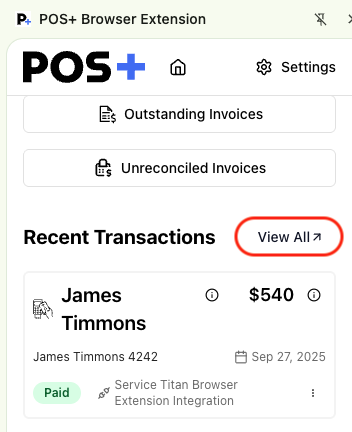
Recent Transactions
This will show a list of searchable transactions. Furthermore, in this view you will be able to interact with transactions, e.g. void, refund, etc..
|
|
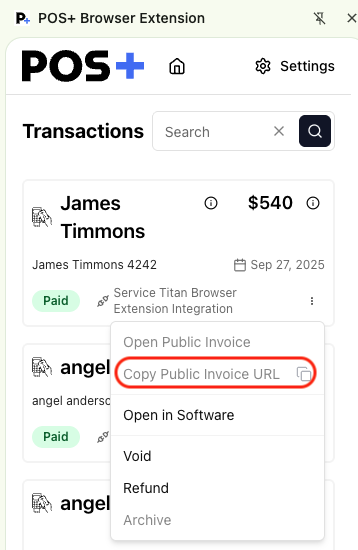
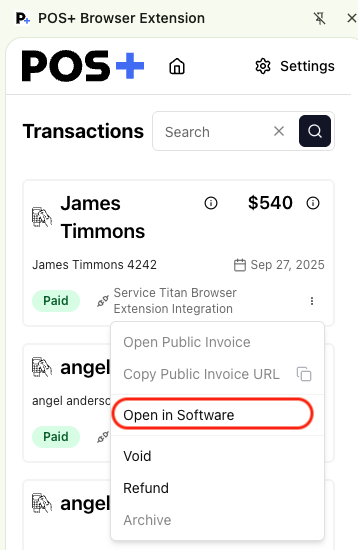
| Pressing the three vertical dots on a transaction card will enable additional actions. | |
Open Public Invoice
Pressing Open Public Invoice button will open a new browser window with the invoice displayed.
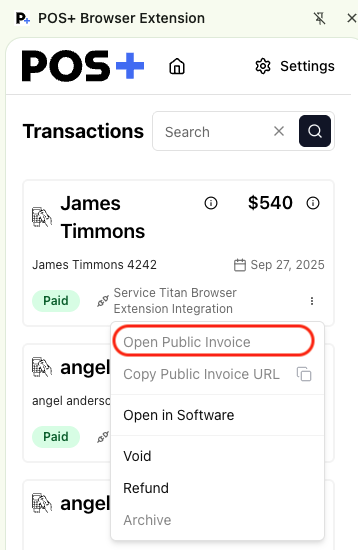
Copy Public Invoice URL
Pressing Copy Public Invoice button will copy the link for the public invoice. This link can then be sent wherever convenient.
Open in Software
Pressing Open in Software button will open the invoice in the merchant’s software. If the merchant is not already logged into their software, they will need to login to see the invoice.
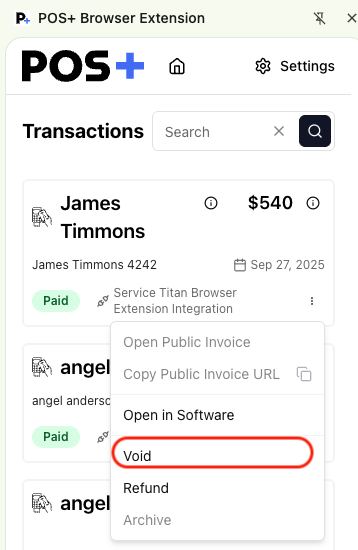
Void
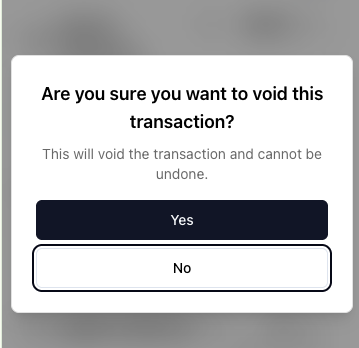
Pressing void will void a transaction before it settles. This can only be done to invoices that have already been Paid. You will be asked to confirm this action.
Demo Video- POS+ Extension- Refund/Void
|
|
|
Select Void in the Transaction Menu after clicking the three vertical dots. |
Confirm if you would like to Void the transaction by confirming Yes/No |
Refund
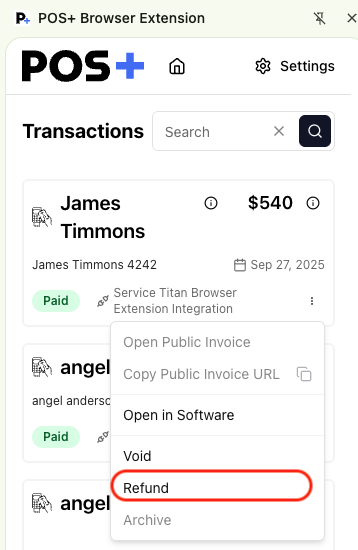
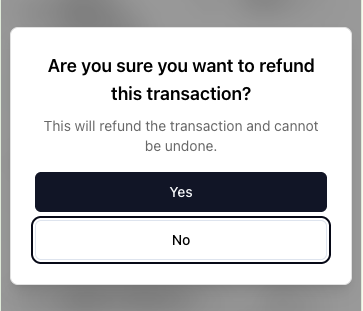
Pressing refund will refund a transaction after it settles. This can only be done to invoices that have already been Paid. You will be asked to confirm this action.
Demo Video- POS+ Extension- Refund/Void
|
|
|
Select Refund in the Transaction Menu after clicking the three vertical dots. |
Confirm if you would like to Refund the transaction by confirming Yes/No |
Archive
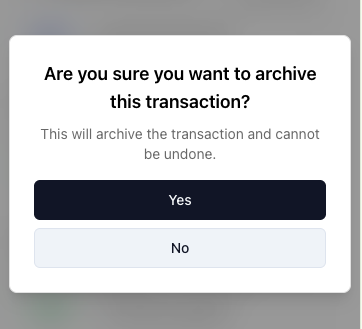
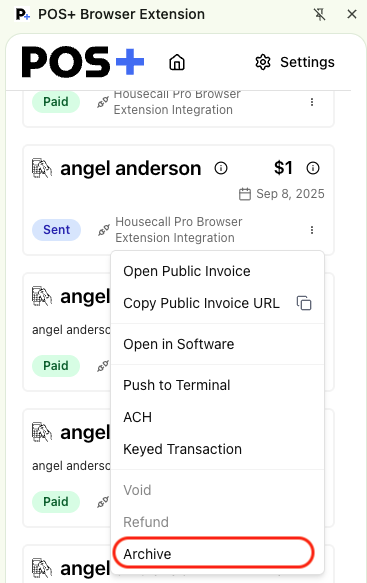
Pressing the Archive button will archive a transaction out of the ledger. This can only be done to invoices that have already been Sent but not Paid.
The intent of this button is to remove transactions that you believe will not be paid. You will be asked to confirm this action.
Demo Video- POS+ Extension- Archive
|
|
|
|
Select Archive in the Transaction Menu after clicking the three vertical dots. |
Confirm if you would like to Archive the transaction by confirming Yes/No |
Recharge
Demo Video- POS+ Extension- Recharge
Use Recharge, or card on file, when you want to use a stored payment method.
Click the Recharge button in the POS+ extension.
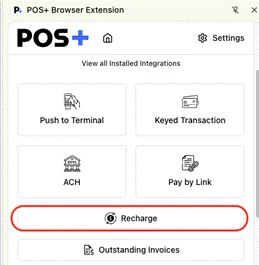
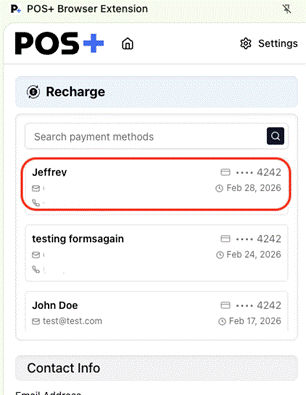
This will load a list of stored payment methods. You can also search for customers from this view using the Search bar.
Select a stored payment of interest and the relevant information will be displayed automatically.
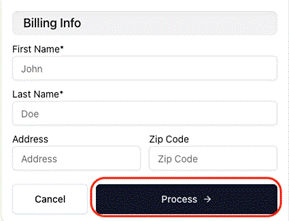
Scroll to the bottom of the extension and press Process to use the stored information for the transaction.
Browser Extension Payment Flows
POS+ Extension- Terminal
Demo Video- Push to Terminal POS+ Extension
POS+ Extension- Payment Links
Demo Video-Payment Links POS+ Extension
POS+ Extension- Keyed Transactions
Demo Video-Keyed Transactions POS+ Extension
POS+ Extension- ACH
Demo Video-Keyed ACH POS+ Extension ACH
Additional Payment Flows
N/A. Additional payment flows require the POS+ Dashboard.