.png?width=300&height=300&name=Untitled%20design%20(6).png)
About
ServiceTitan is a mobile, cloud-based software platform that helps home services companies streamline operations, improve customer service, and increase sales.
Website: ServiceTitan
Important Notes
Once a payment flow has been built for a software, it becomes available to all users.
Marketing Demo Video
Browser Extension
Demo Video- POS+ Extension- ServiceTitan
Dashboard
Demo Video- Dashboard- ServiceTitan
Integration Type
This integration requires the POS+ Browser Extension to be installed and active within your supported browser.
ServiceTitan has a more involved setup process than other software platforms. The following setup steps must be completed by the partner. If the partner does not want to complete the setup themselves, POS+ can handle the setup for an additional fee.
To begin, you must log in using a ServiceTitan admin account in order to create a new user account. Only admin users can add integrations within ServiceTitan.
Because admin accounts require Two-Factor Authentication (2FA), the least disruptive option is for the ServiceTitan merchant to create a separate admin account for you. This allows you to use your own device to receive the 2FA verification codes during setup.
-
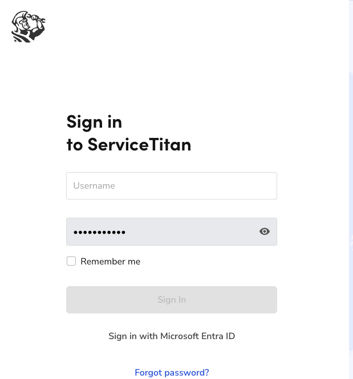
Go to https://go.servicetitan.com/.
- Login as an Admin User.
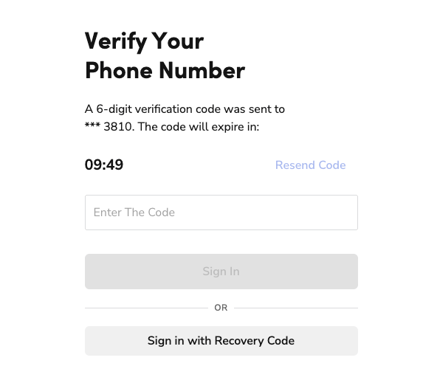
- Enter the 2FA information for the admin account, such as the code sent to the user’s phone or the code generated by the authenticator app.
- Open a new browser tab at https://developer.servicetitan.io/.
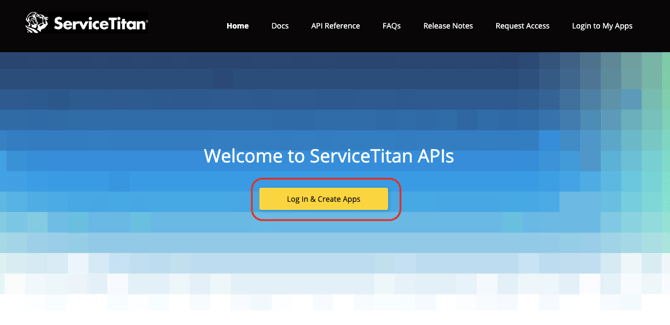
- Click Log In & Create Apps.
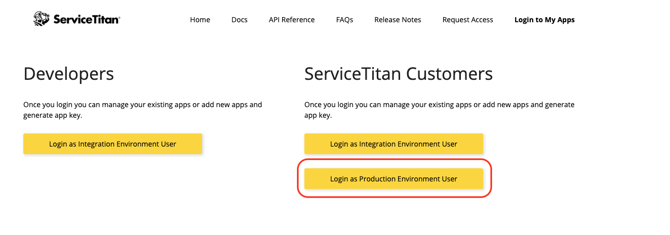
- Click Login as Production Environment User.
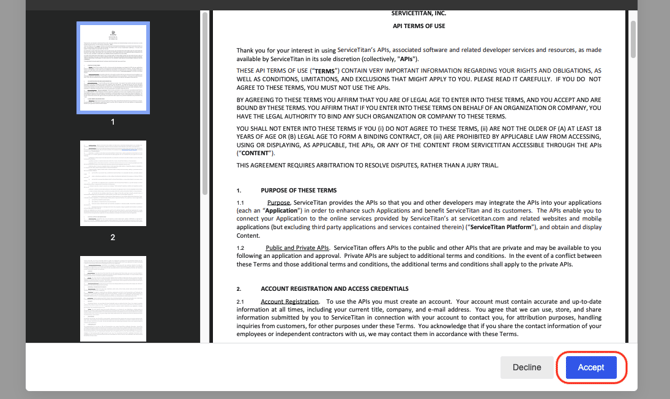
- Click Accept.
- Click +New App

- Fill in the following fields:
- Organization: Merchant Name- ServiceTitan | Example: "Bob's Plumber- ServiceTItan"
- Homepage: the merchant’s URL. For example, https://www.bobsplumber.com
- Email Address: put the partner email address. For example, john.smith@isopayments.com
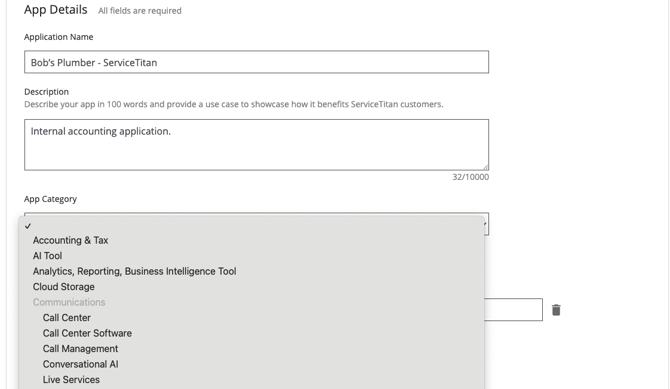
- Application Name: reuse the Organization name. For example, “Bob’s Plumber - ServiceTitan”
- Description: write “Internal accounting application”
- App Category: choose Accounting & Tax from the dropdown
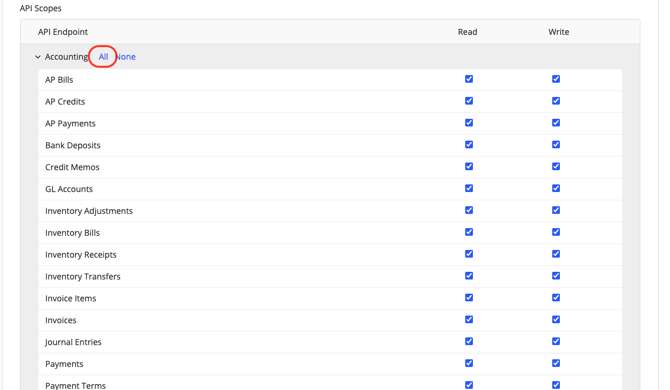
- API Scopes: please ensure all checkboxes are selected by selecting the All button for every section (e.g. Accounting, Customer Portal, CRM, et al.). There should not be any checkboxes left unchecked.
- API Scopes: please ensure all checkboxes are selected by selecting the All button for every section (e.g. Accounting, Customer Portal, CRM, et al.). There should not be any checkboxes left unchecked.
-
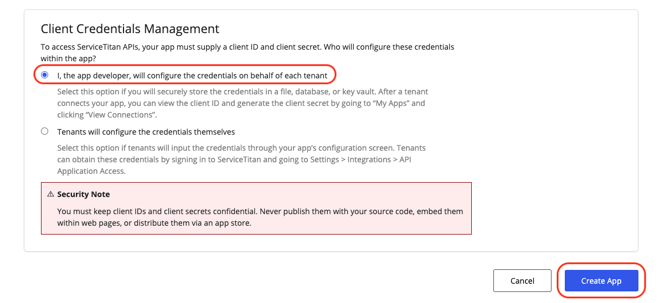
Select the button for I, the app developer, will configure the credentials on behalf of each tenant.
-
Press Create App.
- You should now see this app in the my-apps section on the next page.
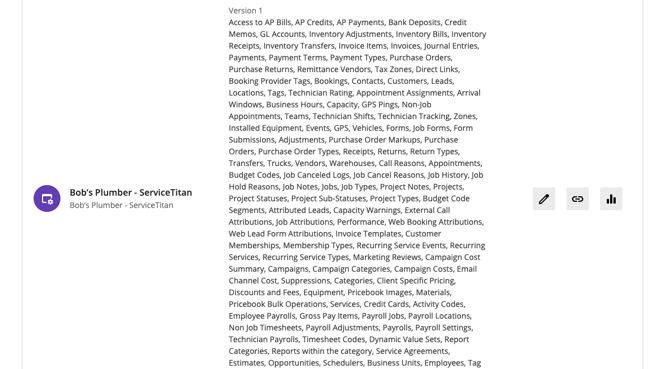
- Now return back to go.servicetitan.com where you’ve logged in as the administrator.
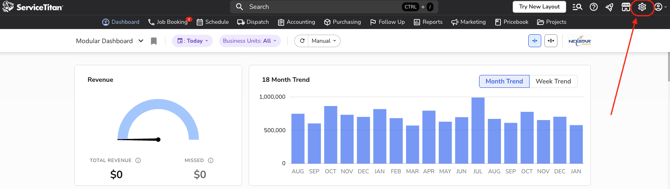
- Click the settings gear in the top right.
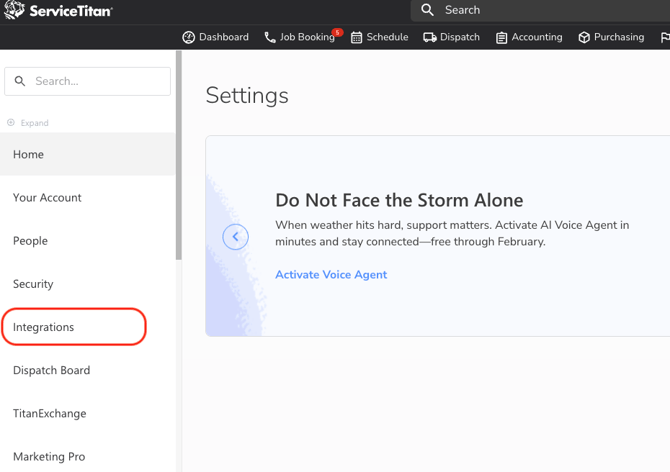
- Then click Integrations on the left hand navbar.
- Click API Application Access dropdown.
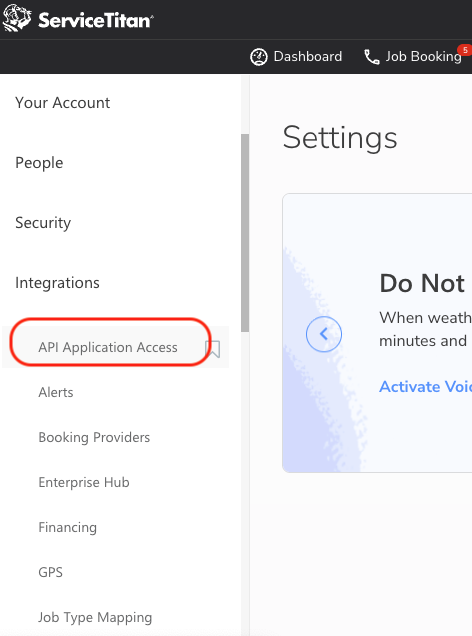
- Click Connect New App.
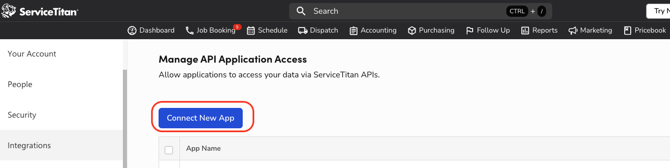
- You should see your new application here.
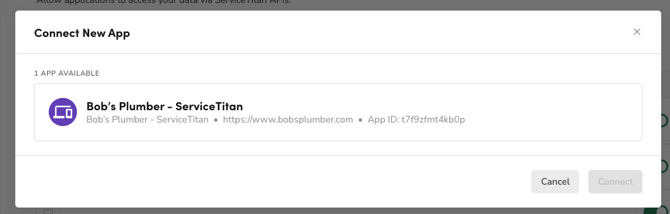
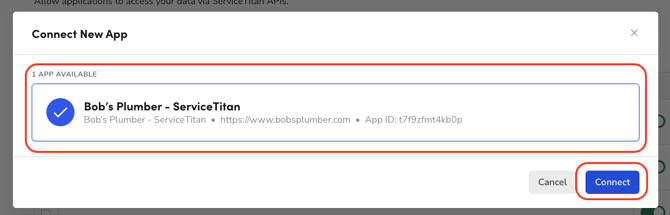
- Click the application then click Connect.
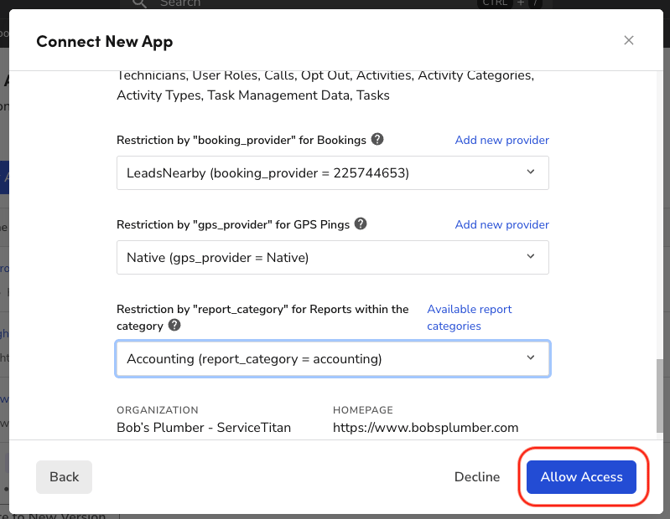
- On the next screen choose any value for all of the dropdown boxes.
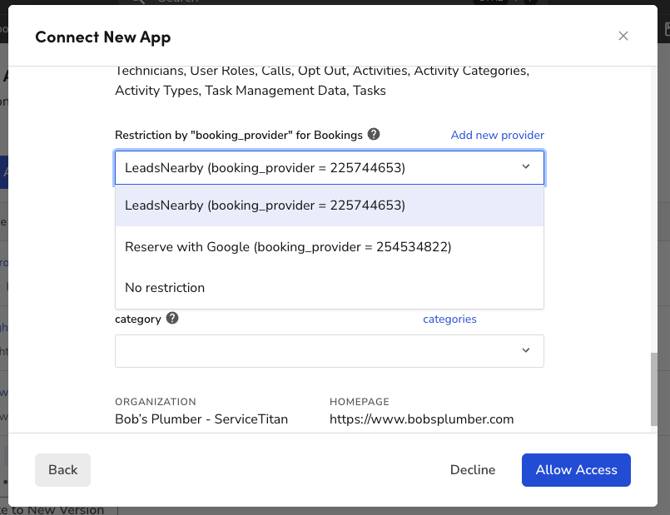
- Once all fields are filled, click Allow Access.
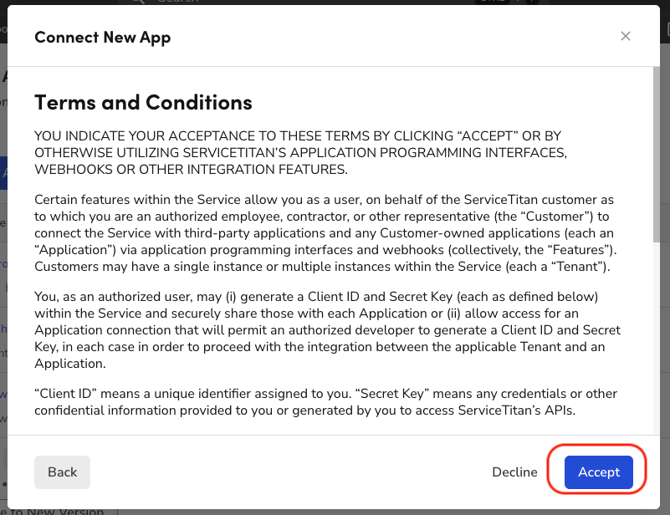
- Click Accept on Terms and Conditions.
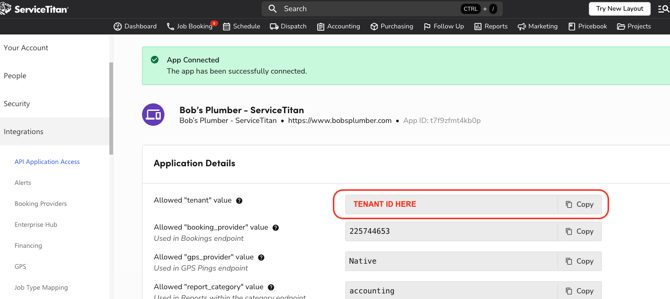
- On the next screen you will see the Tenant ID. Copy that and paste it into the POS+ portal for the ServiceTitan merchant.
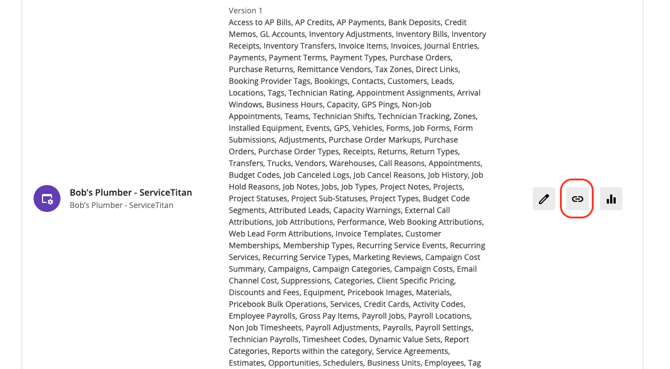
- Now return back to https://developer.servicetitan.io/ where you’ve logged in as the administrator.
- Click on the middle link icon for your Apps screen for this integration.
- Copy the Client ID and paste it into the POS+ portal for the ServiceTitan merchant.
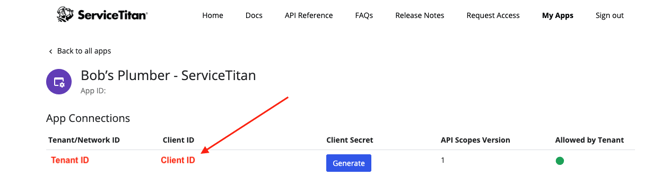
- Next click the Generate button to generate the Client Secret ID.
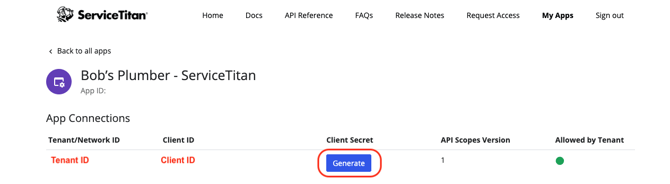
- A screen will appear to generate the Client Secret ID.
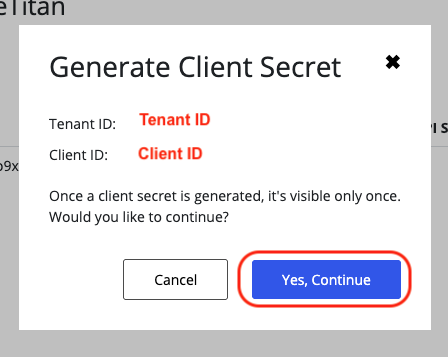
- Press Yes, Continue.
- The next screen will have the Client Secret ID.
- Copy and paste this value into POS+ portal for the ServiceTitan merchant.
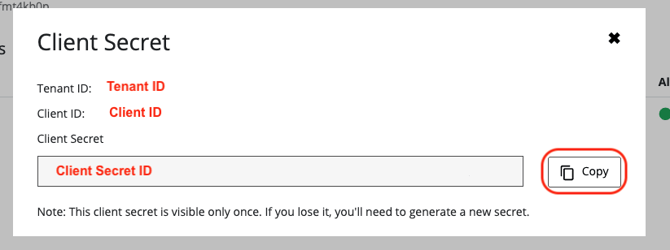
- Copy and paste this value into POS+ portal for the ServiceTitan merchant.
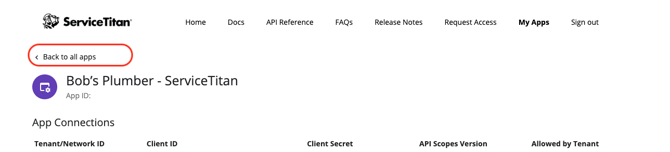
- Press Back to all apps to navigate to the App screen.
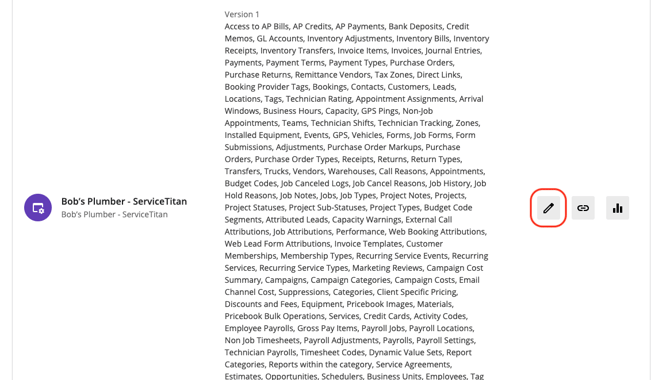
- Press the edit icon next to your application.
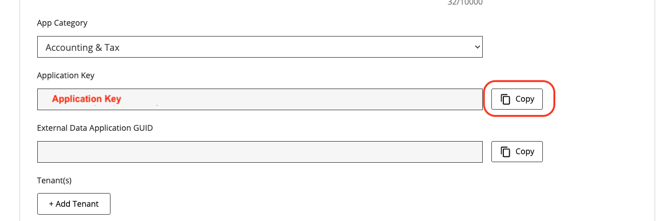
- On the next screen, scroll down to the App Details section and copy the Application Key and paste this value into POS+ portal for the ServiceTitan merchant.
- Now return back to go.servicetitan.com where you’ve logged in as the administrator.
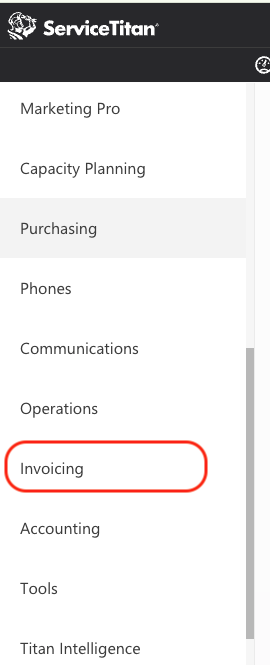
- On the left hand navbar go to Invoicing.
- Scroll down to Payment and Invoice Types.
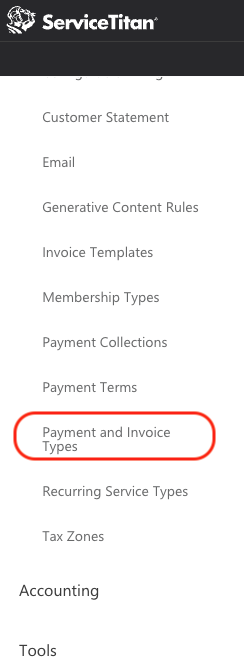
- This will determine how the POS+ transactions are reconciled back into ServiceTitan.
- Most of the time the partner wants this payment type to be “Partner Name”.
- Click Add under Payment Types.
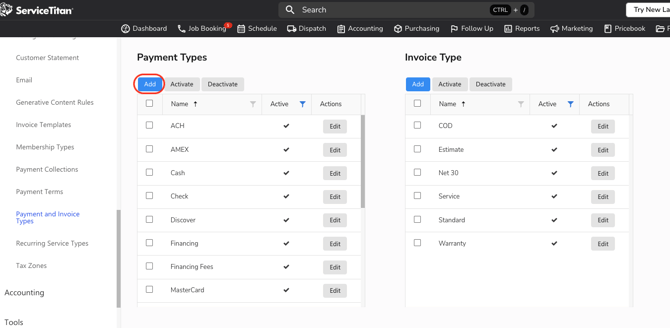
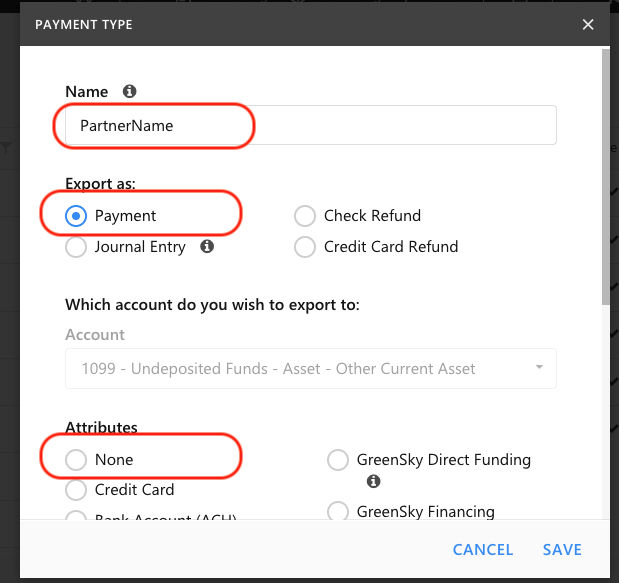
- Add the name you want associated with POS+ payments in the Name field.
- Under Export as, toggle the Payment button.
- Under Attributes, toggle the None button.
-
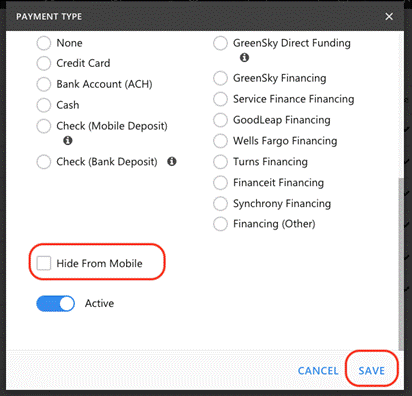
Scroll down and ensure Hide from Mobile is unselected. Press Save.
- Note: In some cases, selecting Export as: Payment will require you to manually choose an account under Which account do you wish to export to:, as an account may not be preselected automatically.
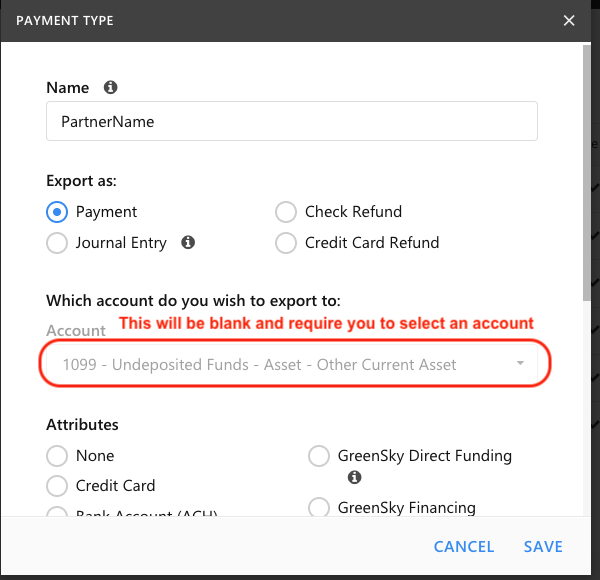
- If this happens, simply exit out of this window to return to the Payment Type screen
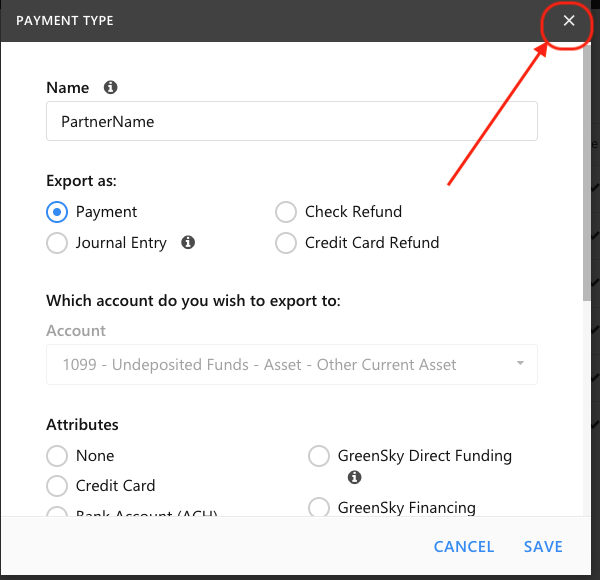
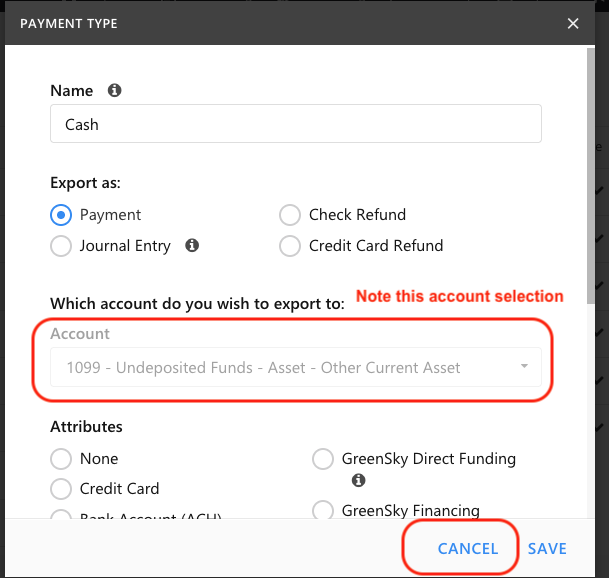
- One here, select the Cash payment type and press Edit

- Then see what account is chosen by default for Cash reconciliation.
- Press Cancel.
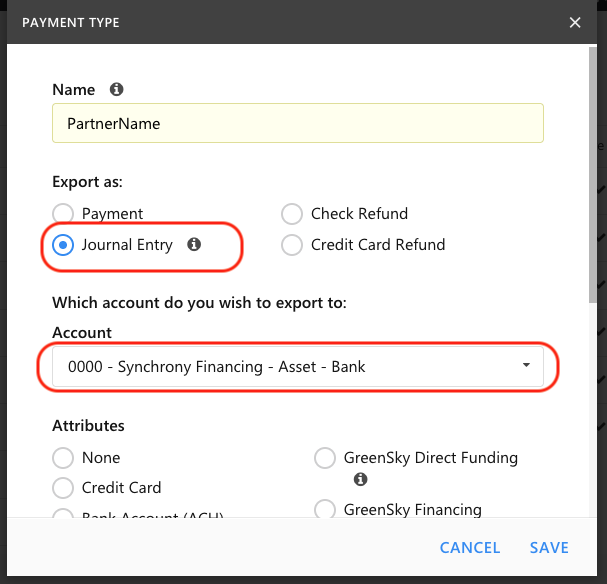
- Return to your Payment Type with the partner name.
- Select the Journal Entry button.
- Choose the correct Account from the dropdown.
-
Then toggle the Payment button.
-
For Attributes, select None.
-
Press Save.
Reconciliation User
Next, we need to ensure there is a user on file who can perform reconciliations.
This user must be set up by an administrator within the merchant’s ServiceTitan account, and the user’s credentials in the POS+ portal must be accurate and up to date.
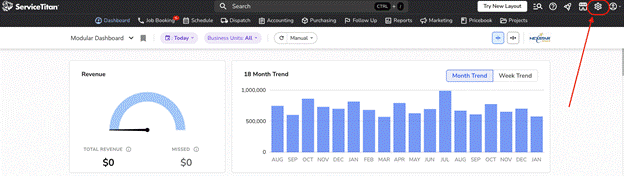
- To set up this user is ServiceTitan, click settings on the top right of go.servicetitan.com
- Click on People in the left hand navbar.
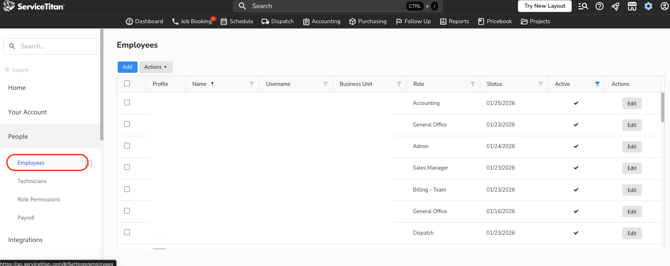
- Click on Employees
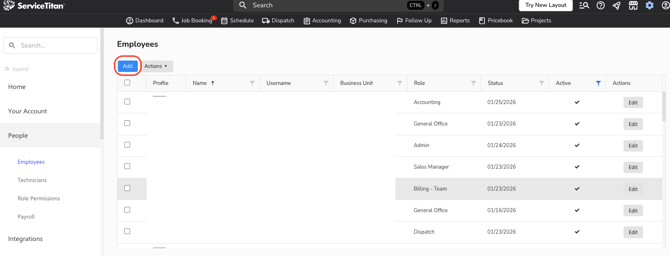
- Click Add.
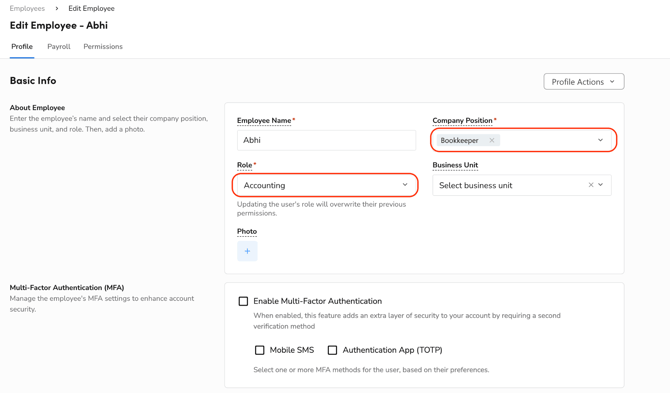
-
You can call the user whatever you want.
-
In the Role dropdown, choose Accounting.
-
In Company Position, choose Bookkeeper.
-
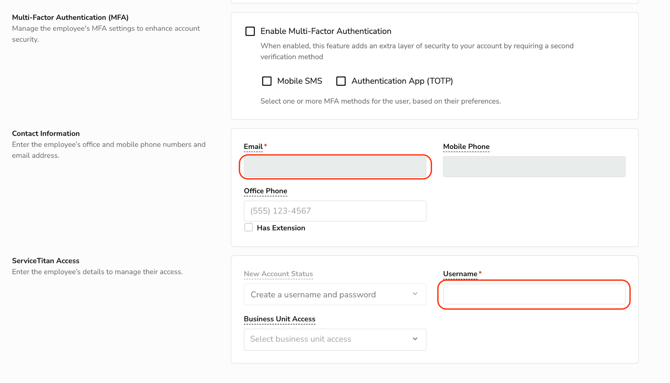
- Ensure Multi-Factor Authentication is unselected.
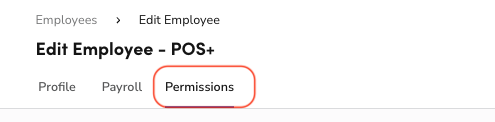
- To do this, you will need to go to the Permissions tab:
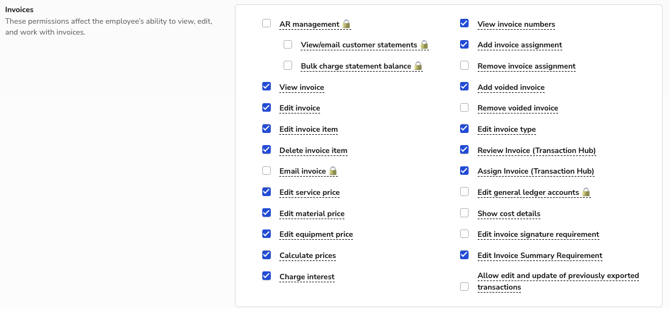
- And deselect any permission with the lock icon as the lock icon will require that 2FA be enabled for that user.
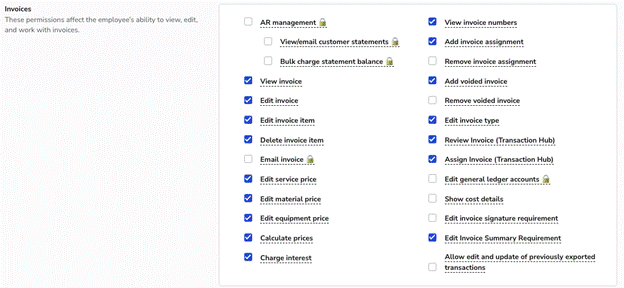
- See below example of Invoice Permissions and how we have deselected the permissions with the lock icon next to them.
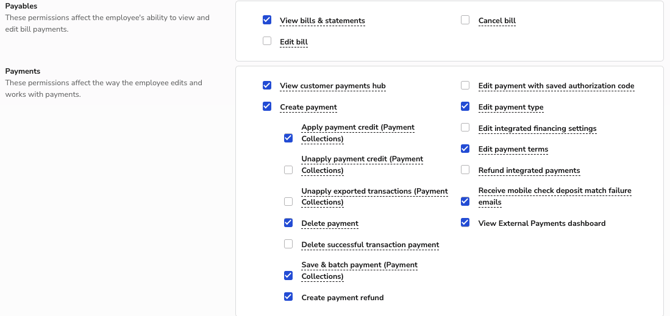
- In particular we need Invoices, Payables, and Payments permissions set per the below:
- Enter an Email and Username. Copy and paste these values into the POS+ portal for the ServiceTitan integration.
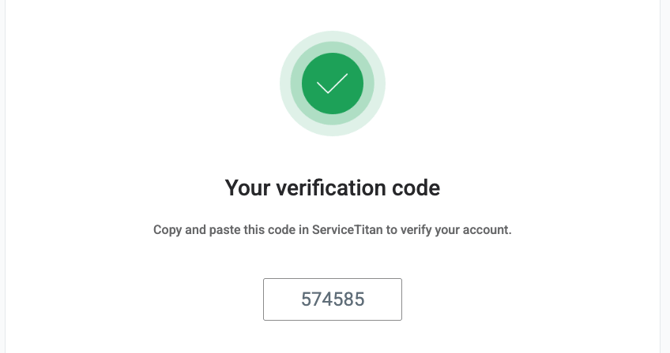
- Once you have created the user, you will need to log in to verify the account.
- ServiceTitan will send a verification code to the email address on file, so please complete the verification process as soon as the new user is set up.
- Note: the credentials for this reconciliation user MUST be added to the API integration for ServiceTitan in the POS+ Portal. Without these credentials mobile payments will NOT reconcile.
- Log into the POS+ portal and go to the ServiceTitan API integration for the merchant.
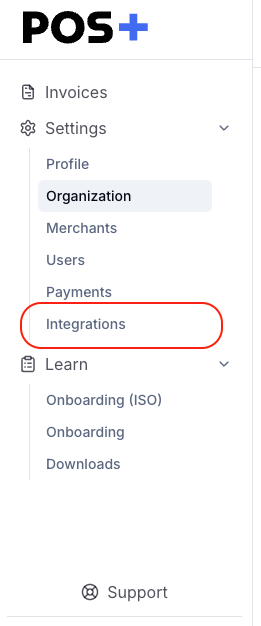
- Click Edit on the API integration.
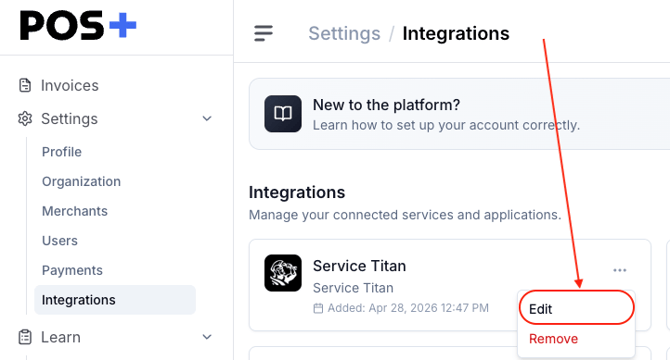
- Scroll down to Username and Password and enter the Username and Password of the reconciliation user you just created.
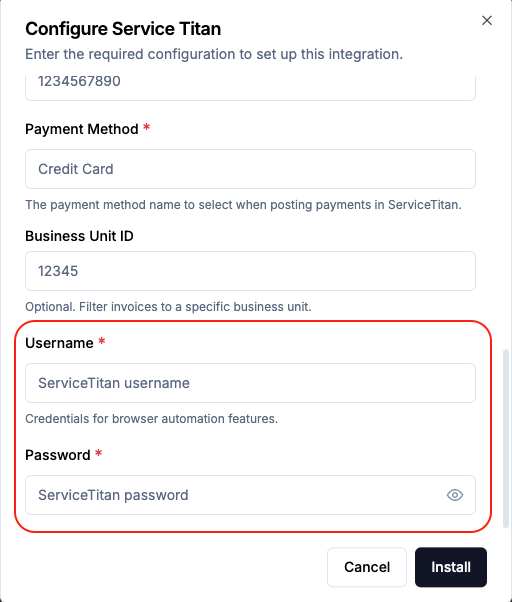
- Press Install to save it.
ServiceTitan Users in POS+
-
Each user on ServiceTitan that would like to use POS+ must have their ServiceTitan username entered into POS+.
-
Log into the POS+ portal as an admin.
-
Navigate to the merchant of interest.
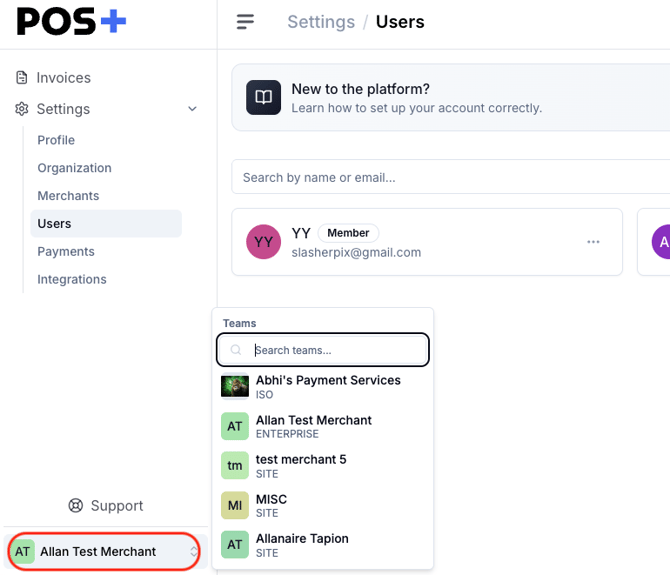
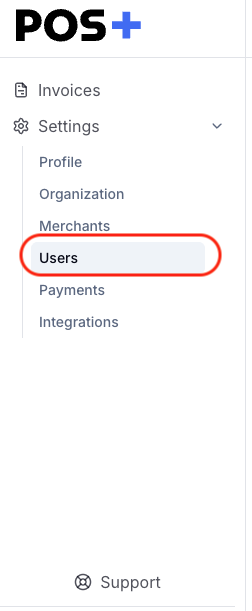
- Go to Users.
- Go to Add User.
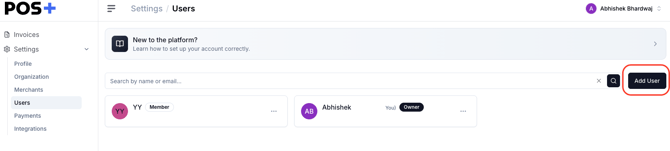
- Enter the ServiceTitan user’s name and email address.
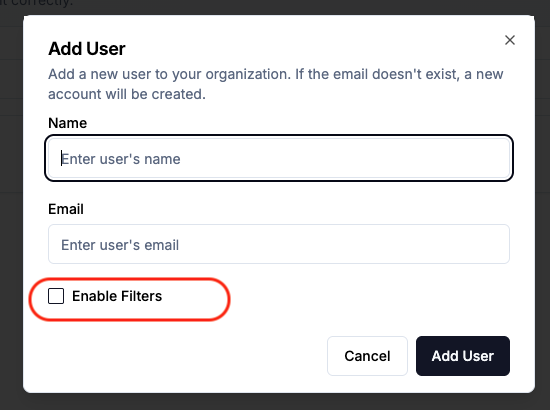
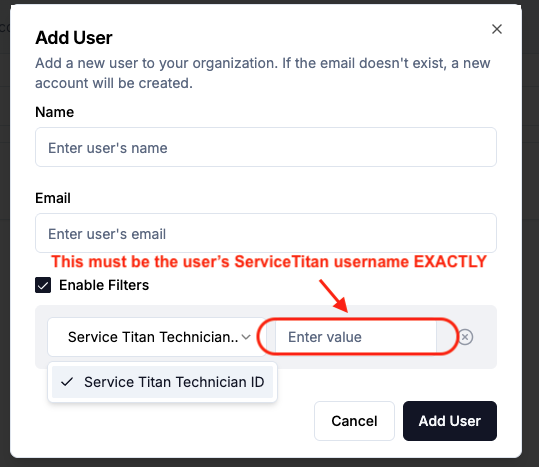
- Check Enable Filters.
- Next to the appropriate dropdown, enter the user's ServiceTitan username exactly as it is in ServiceTitan.
- Note: Capitalization matters; if the capitalization of the username is incorrect, it will not work.
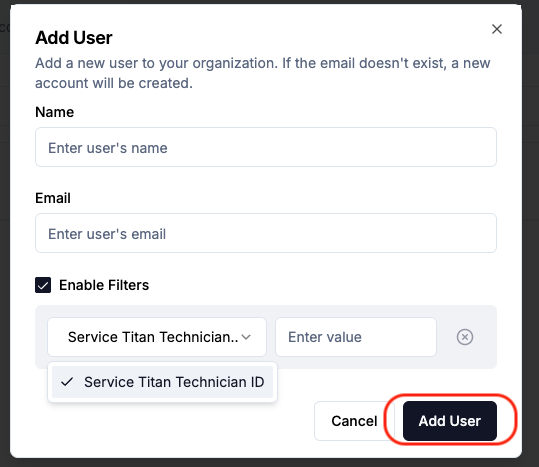
- Click Add User when finished.
Support
- Turn off two factor authentication where possible. This can prevent POS+ access.
- Ensure the software username and password in the POS+ portal are always up to date. This can prevent POS+ access
- If the integration does not work AND you are on the correct invoice page in the software, please contact POS+.