.png?width=300&height=300&name=Untitled%20design%20(6).png)
This article explains how to create, schedule, and manage recurring payments in the Valor Virtual Terminal. Recurring payments support two types:
- Merchant portal access with a Virtual Terminal permission is required. Sign in at www.online.valorpaytech.com.
- Have the customer’s card, billing, and shipping details ready.
Step-by-step: Create a recurring payment
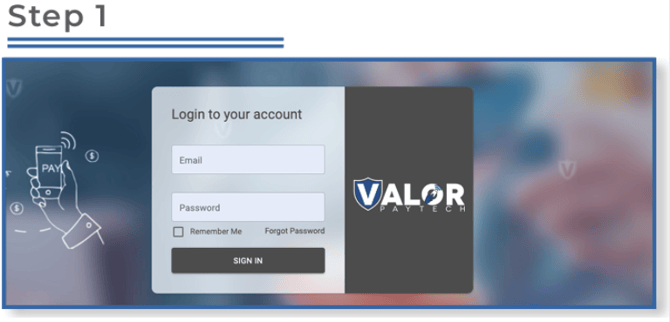
- Log in & open Virtual Terminal
- Go to www.online.valorpaytech.com. Sign in.
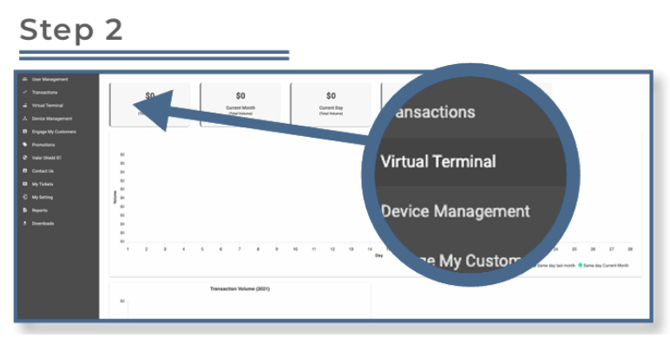
- Select Virtual Terminal from the sidebar.
- Enter transaction details
- Enter the transaction amount, phone number or email (optional), and the customer’s credit card information. Add an invoice number or description if needed.
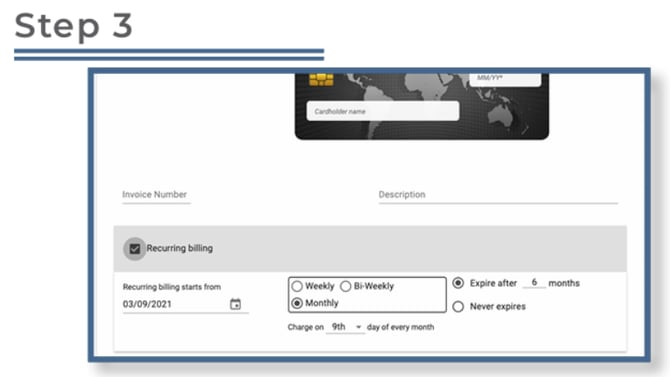
- On the transaction screen check the Recurring billing checkbox (bottom-left). This reveals recurring configuration settings.
- Select Subscription or Installment
-
Enter billing & shipping addresses
-
Scroll down and provide billing and shipping addresses. Select the checkbox to copy billing to shipping if they are the same.
-
-
Validate & Save
-
Review all entries and click Validate & Save to create the recurring bill.
Manage existing recurring bills
Go to the Transactions module → Recurring Billing (or view the recurring bills listing). Use the vertical ellipsis (⋮) beside a recurring bill to edit or manage it.
Related resources