.png?width=300&height=300&name=Untitled%20design%20(6).png)
SwipeSimple Web
To enable inventory tracking on the web dashboard:
- Navigate to Items and either:
- Click Add Item to create a new item, or
- Select an existing item to edit
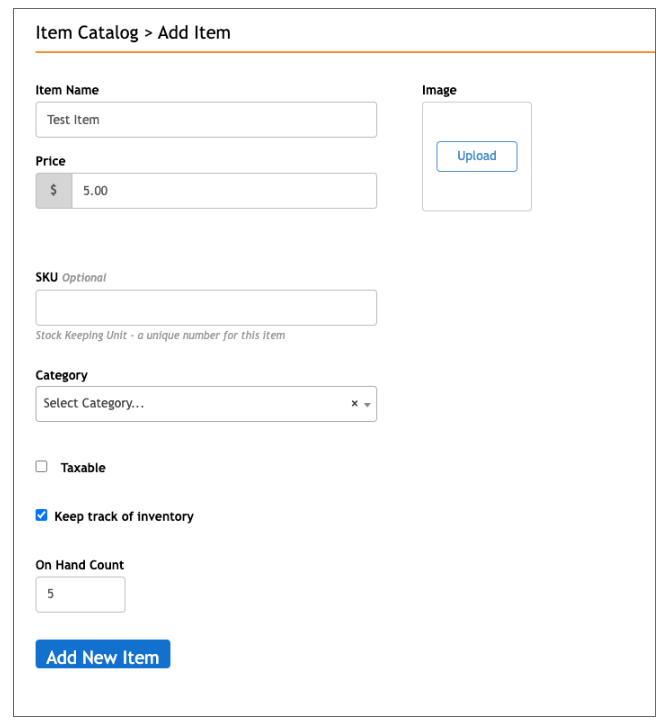
- Locate the Keep track of inventory dropdown
- Select Yes
- In the Count on hand field, enter the current quantity available
- Save your changes
This will begin tracking inventory levels for that item.
SwipeSimple Mobile
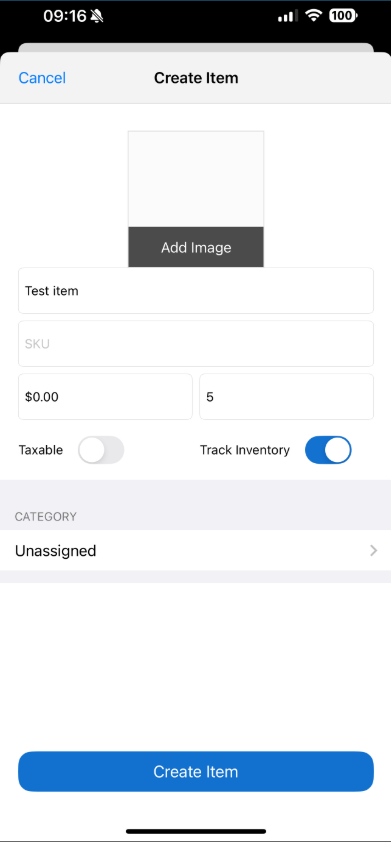
To enable inventory tracking on the mobile app:
- Open the app and go to Items
- Tap to:
- Add a new item, or
- Edit an existing item
- Toggle Track Inventory to turn it on
- Enter the quantity in the highlighted Quantity field
- Tap Create or Update Item to save
Once inventory tracking is enabled, SwipeSimple will automatically update quantities as items are sold, helping you maintain accurate stock levels.