.png?width=300&height=300&name=Untitled%20design%20(6).png)
Overview
This article outlines how to resend verification and activation emails in Valor, along with password reset instructions and steps for gaining portal access.
In this article:
Step 1: Send Verification Email
-
Navigate to User Management in the sidebar menu.
-
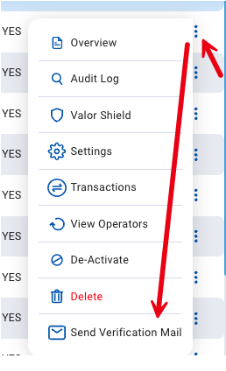
Select the vertical ellipsis (⋮) next to the user.
-
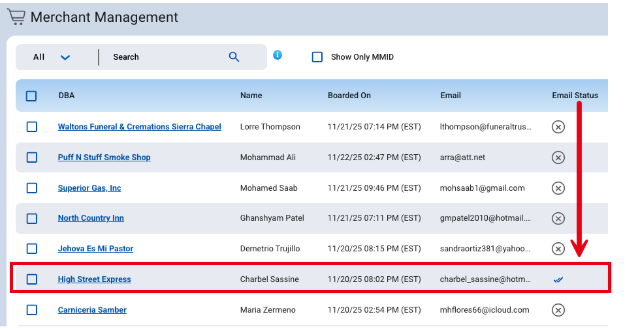
Click Send Verification Email.
|
|
Once the email is verified, proceed to Step 2.
Step 2: Resend Account Activation
Method 1 (Individual User)
- Navigate to User Management.
- Click the hyperlinked email address of the user.
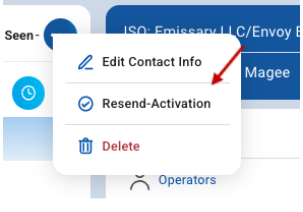
- Select the vertical ellipsis (⋮) next to Last Seen.
- Choose Resend Activation.
Method 2 (Bulk or Checkbox Selection)
- Navigate to User Management.
- Check the box next to the user(s).
- Click the Action button.
- Select Resend Activation.
Reset Password
If a user needs to reset their password:
- Navigate to User Management in the sidebar Menu.
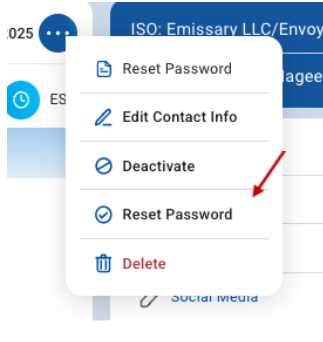
- Select the checkbox next to the user you wish to send the Reset Password Link.
- Click Action → Reset Password.
Gaining Online Portal Access
- Once the account is created by the Sales Representative, the user receives an activation email.
- Open the link and create a password.
- After setup, log in to the online portal
Creating a Portal Password (Merchant)
Once an Account has been created in the Portal, the merchant will receive an SMS and Email providing you with an Activation Link.
- Click the activation link received via SMS or email.
- Create a password that meets the following requirements:
- Minimum 6 characters
- At least 1 uppercase letter
- At least 1 lowercase letter
- At least 1 numeric digit
- Enter the password in both fields and click Confirm.